Step 1
Start off with a new document with a transparent background. I used 1024 by 768 to make a nice background.
Step 2
Hit D on your keyboard to make sure you have your default colors selected (black and white).
Step 3
Select your gradient tool, and set it to the following settings:

Step 4
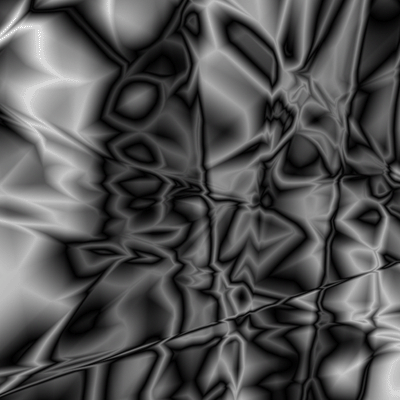
Go crazy with your gradient. Click and drag small lines, large lines, diagonal lines, and any other variation you can think of. The point is to get a lot of areas that are set off. Make sure your image is darker as opposed to lighter:
Step 5
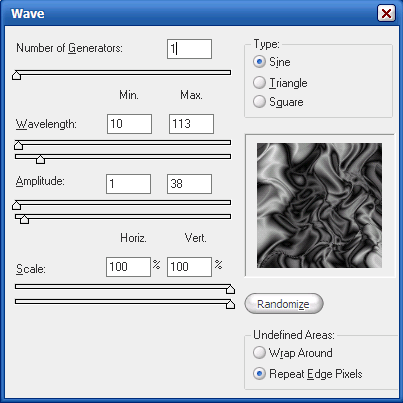
Duplicate your layer. With your duplicated layer selected, go to Filter>Distort>Wave. Use the following settings:
Step 6
Select the layer property of Lighten on your duplicated layer and merge the two layers together by pressing Ctrl+E on your keyboard.
Step 7
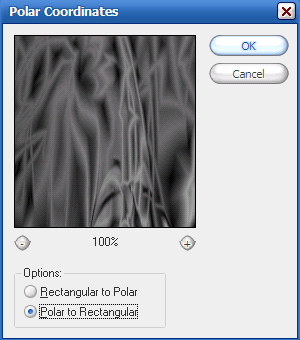
Duplicate your layer. With you duplicated layer selected go to Filter>Distort>Polar Coordinates with Polar to Rectangular selected:
Step 8
Select the layer property of Lighten on your duplicated layer and merge the two layers together.
Step 9
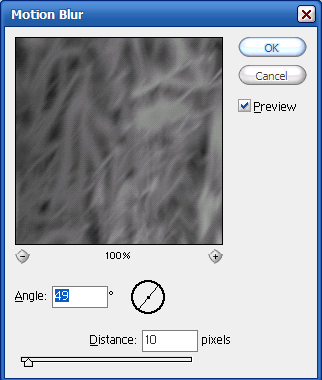
Duplicate your layer yet again. With your duplicated layer selected, go to Filter>Blur>Motion Blur and use the following settings:
Step 10
Select the layer property of Lighten on your duplicated layer and merge the two layers together.
Step 11
Duplicate your layer again (for the last time, I promise). With your duplicated layer selected go to Edit>Transform>Flip Horizontal.
Step 12
Select the layer property of Lighten on your duplicated layer and merge the two layers together.
Step 13
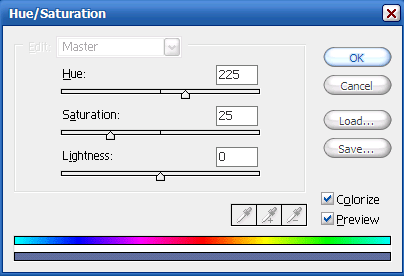
Hit Ctrl+U on your keyboard to colorize. Be sure to check the Colorize box and then mess around with the settings. I used the following settings:
Step 14
That's a good background without a lens flare? Go to Render>Lens Flare and use the 105mm Prime selection and mess around with the brightness. Put it in the middle of your image, and you're done!
My final image: