Step 1
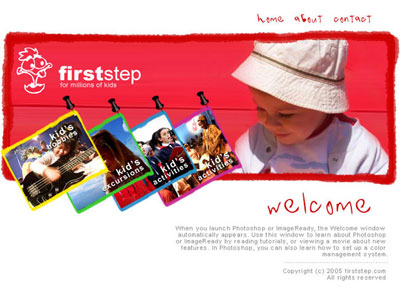
In this tutorial we'll guide through the necessary steps for creating a kids website layout with Adobe Photoshop.
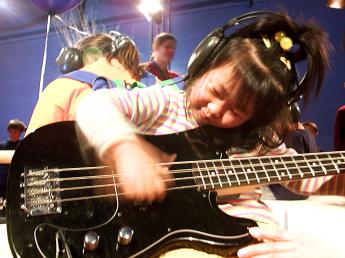
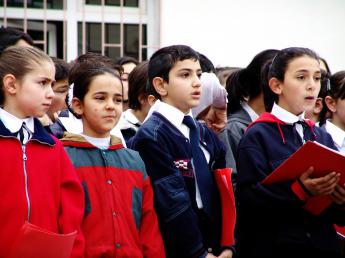
Save the next pictures on your computer, if you don't have others to complete this tutorial:



Step 2
Create a new document in Adobe Photoshop with the size 740x540 and a white background. Import the picture "kids1.jpg" in your document:
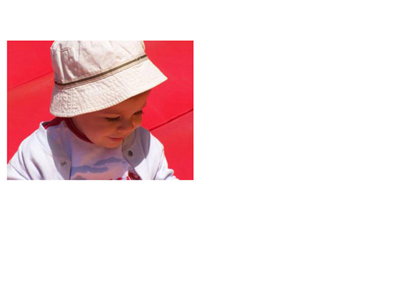
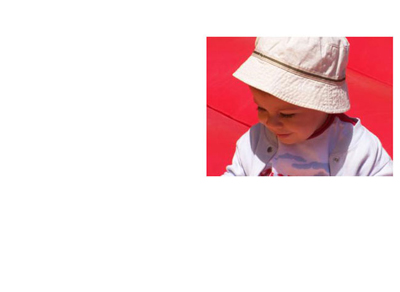
Flip the picture horizontal and place it in the position like here (to flip the picture horizontal select Edit > Transform > Flip Horizontal and to move it just drag the picture in the new position):
Step 3
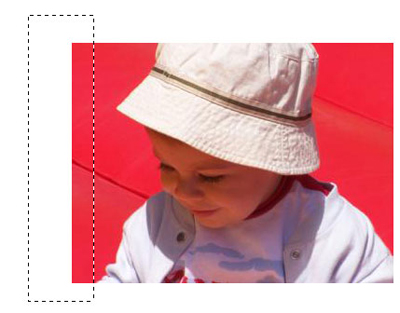
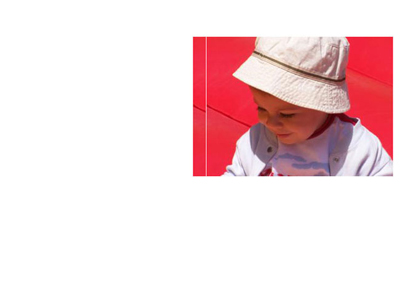
Make a selection using the Rectangular Marquee Tool and use the CTRL+C, CTRL+V key combination to copy and paste the selected area:
Step 4
Select Edit > Transform > Scale and transform the scale of the new layer like here:

Drag the layer "layer 2" below the layer "Layer 1":

Step 5
Select the layer "Layer 1" in the Layers Tab and delete an area like in the next picture, using a brush like "Soft Rounded 100 pixels":

Step 6
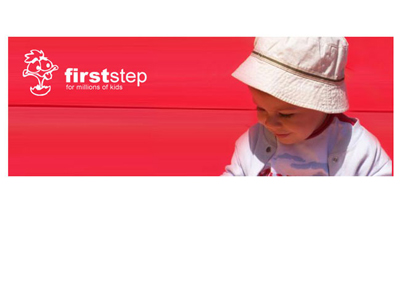
Add a nice logo to your site:
Step 7
Make a border around the header using a brush like "Rough Round Bristle" with the size 23 pixels, and a dark red color:
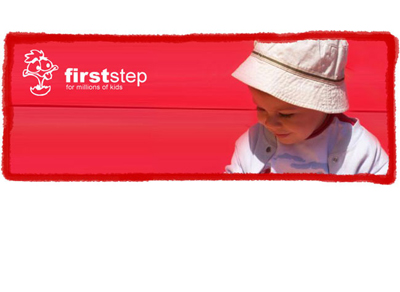
Step 8
Import the picture "kids3.jpg" on the scene, resize it and rotate it like here (to resize it select Edit > Transform > Scale and hold down the SHIFT key when making the transformation; to rotate it, select Edit > Transform > Rotate):
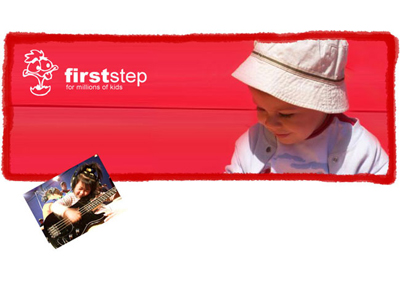
Step 9
Duplicate the layer which contains the border, resize it, rotate it and move it in the position like here, above the next picture (drag the layer in the Layers Tab above the layer which contains the picture):
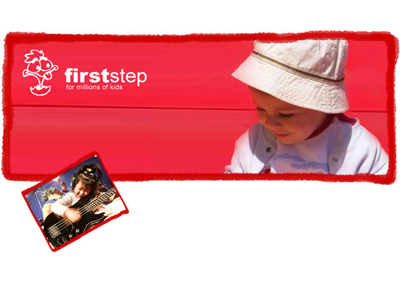
Add the color overlay effect on the new layer; to make this, select Layer > Layer Style > Color Overlay and choose a yellow color in the window that appears:
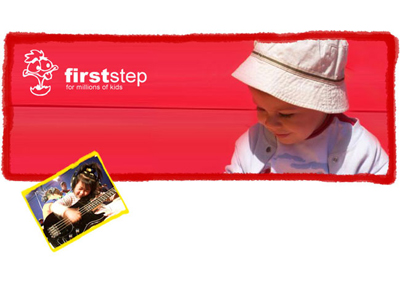
Step 10
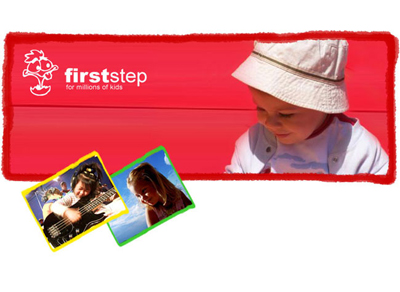
Import the picture "kids4.jpg" on the scene and repeat the step 8 and 9 (resize it and add border to this picture, but this time set the color to green):
Step 11
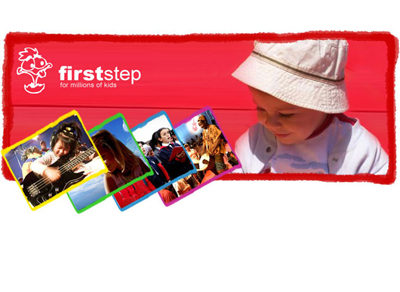
Repeat the step 10 again, this time for the picture "kids5.jpg" and for the picture "kids2.jpg":
Step 12
Apply some kind of text on your categories, and a welcome text, and you have a nice layout for your kid's website: