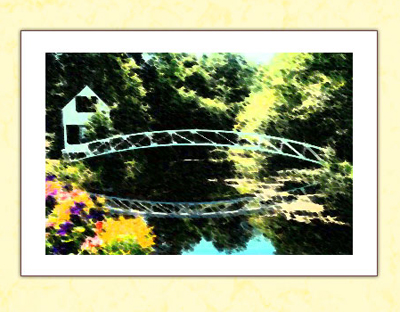
Step 1
Open an image in Photoshop. I chose the next one to work with:
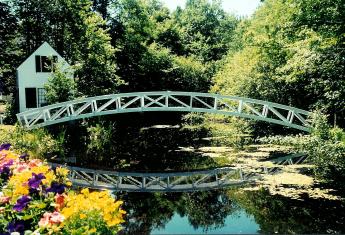
Step 2
Select Filter > Artistic > Smudge Stick with the next settings:
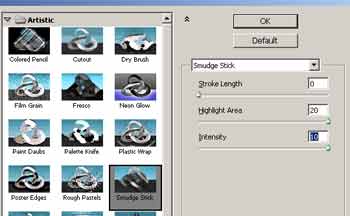
Step 3
Add a new layer in the Layer Tab, draw a rectangle with a white color and add shadow to this layer; this new layer must be below the layer that contains the picture:
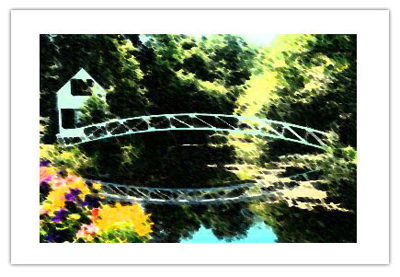
Add a small border to the rectangle, if you want, using the Layer > Layer Style > Drop Shadow.
Step 4
Now add a color to the layer "background" and some kind of texture using another picture and the "Blending Options" in the Layers Tab: