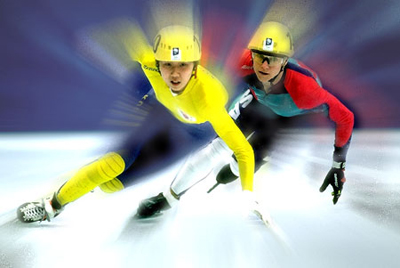
Step 1
Open the next picture in Photoshop:
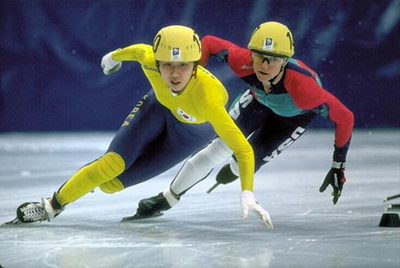
Step 2
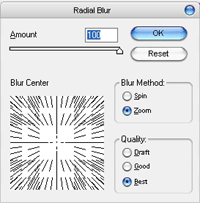
Duplicate the layer in Layers Tab. And on the duplicate layer apply the effect Filter > Blur > Radial Blur with the next settings:
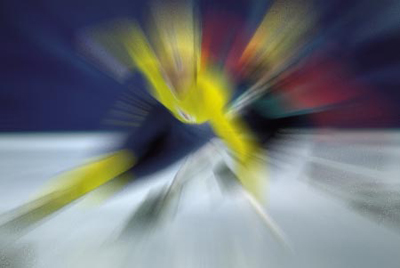
The new layer should look like this now:
Step 3
With a small brush (like "Soft Round 30 pixels") delete an area on the duplicate layer and adjust the luminosity and the contrast on the layers, and that's the result: a nice dynamic movement from a static picture.