This tutorial is built directly off of the original Fine Lines tutorial. The tutorial begins right after the second step of the original. You should have an image like the one below.
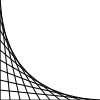
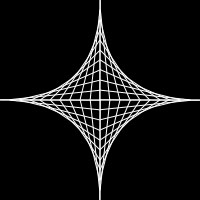
Take this image and use Image/Adjustments/ Invert, this will create white lines to use against a black background. Use File/New to create a new 200x200 image. Now drag four frames over into the new image and using Edit/Transform/Rotate create the image below.
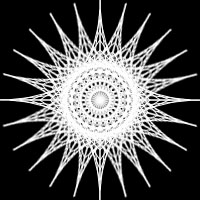
Using Layer/Merge Down create a single layer with all your white lines. Now create 5 duplicate layers of your lines. Using Edit/Transform/Rotate you will create the image below. Each of the layers needs to be rotated in increments of 15 degrees: 15, 30, 45, 60, 75. Your igame should look like the one below. By using Layers/Merge Down create a single layer with all your white lines.
Create a new image using File/New and make it 400x400. Drag your layer shape into the center of your image. Add a little flavor to it by using Filter/Artistic/Plastic Wrap.
Now comes the finishing touch which is just a little bit of color. By using Image/Adjustments/Hue /Saturation we can change the color. Be sure to click the colorize box and you image should look like the one below.