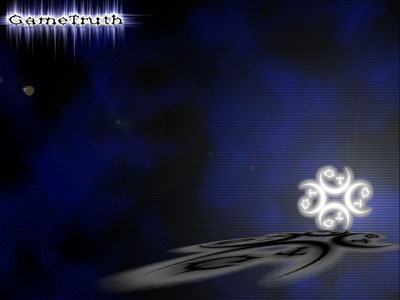
Create a new image in Photoshop by using: File/New. Make sure you give yourself tons of room; I used 1024 x 768 here but I made my images smaller for the tutorial. Then make the background black and add some text or a logo to one side of your picture. I chose a shape with a lot of edges and flavor, but you can really use anything.
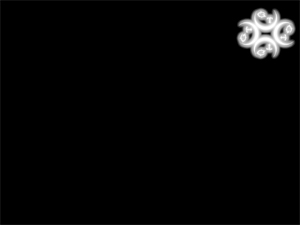
The next step is to right click your logo layer and press Duplicate Layer. Then you are going to want to move this layer so that it lines up directly below the original.
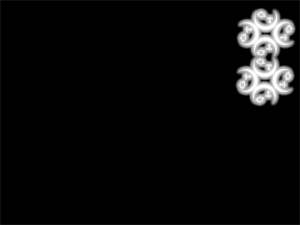
For the next step make sure you have the logo below highlighted and go under Edit/Transform /Perspective. Now you may need to play around with this a little to get a feel for it but in the end your image should look like the one below.
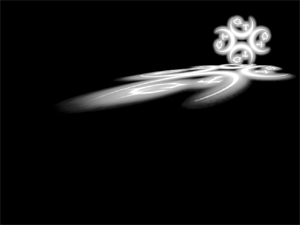
Now its just a matter of playing around with stuff until you find a cool look. Check out the one below, click on it for the full sized wallpaper.