


Original picture and result of this tutorial:
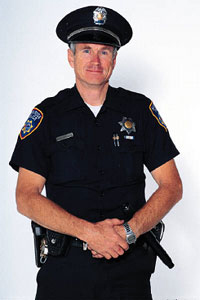
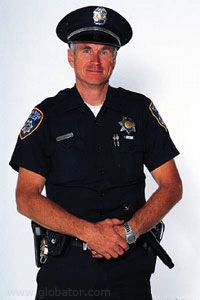
We are going to create a realistic suntan in Adobe Photoshop. Some people are too busy to suntan, some just don't like it. But most of us agree that suntan is attractive and beautiful thing. In Adobe Photoshop you don't have any limits.
Open any picture. I took a photo of a policeman from New York City.
First we have to select policeman's face, neck and hands. You can use our favorite tool for selection- Quick Mask.
Press Q on the keyboard or click on it's icon.
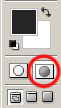
Double left click on the same icon to enter it's options. Make sure you have the following settings:
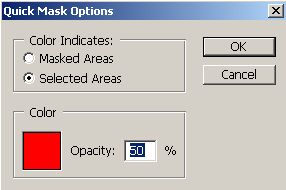
Now take Brush tool
 and start to select areas of the skin for tanning. Do not select eyes (and teeth, if your picture has it).
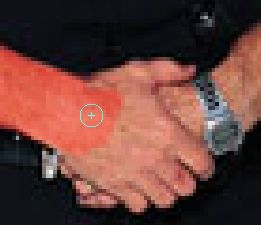
All areas are selected now:
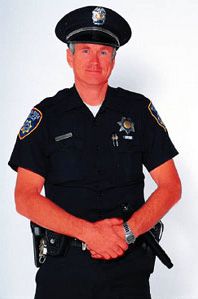
Press Q to exit Quick mask mode:
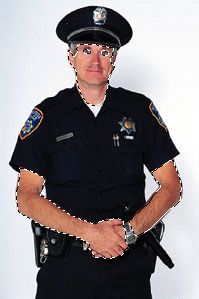
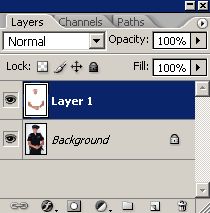
Hit Ctrl+J on your keyboard to make a layer copy via cut. Press F7, if your layer window is closed.
In the upper menu click on the Image-Adjustments-Curves:
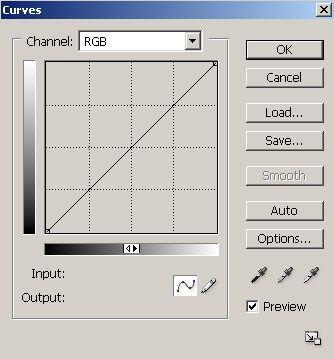
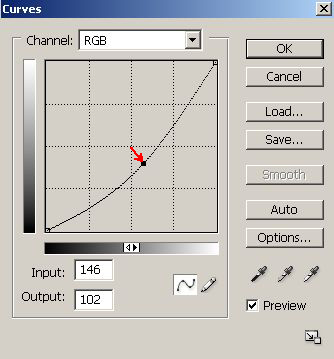
Click on the middle of the curve and move it a little bit in the same direction. Experiment with moving to get the best result.
Now our policeman has a realistic Florida- style suntan:
Have a good suntan!
