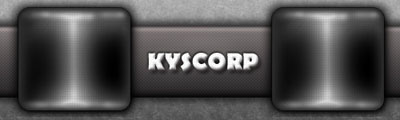
Well in this quick tutorial I will try to show you how to use Dodge tool (and also burn tool) to
Create new file i chose 175X150
Make a new layer
With the rectangular marquee tool make a selection and fill it with a dark shade of gray; I chose #333333
Grab your dodge tool and set the options as it follows: brush: 65, range: highlights and exposure: 50%
Drag your dodge tool onthe middle of the rectangle to lighten it as if it is exposed to light also lighten the top and bottom sides, your shape is no longer plane
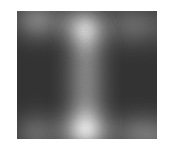
Grab your burn tool and set its options to: brush:65 range: highlights and exposure: 50%
Drag your tool through the dark zones in order to darken them more
With the magic wand select the white background (working on the layer that contains your shape)
Hit ctrl + shift + alt + I to reverse selection
Go to: Select >> Modify >> Smooth... and set the sample radius as 10 px
Hit ctrl + shift + alt + I to reverse selection
Hit the delete button to clear it
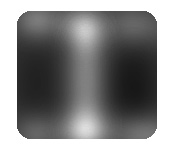
This could have been done since the beginning with the first selection but the point here is to have the final shape after using the dodge and burn tool to make it look more realistic, also now we have to learn how to anti-alias the edges of our shape.
Hit ctrl button and then click on the layer containing your shape (selection)
Go to the channels palette (Window >> Channels) and click on "save selection as channel" on the bottom of the channels palette
Go to Filter >> Blur >> Gaussian Blur. Set the radius to 5 pixels or so.
Hit ctrl+shift+L to apply auto levels
Use the dodge tool with the same settings and with a smaller brush (17 px for instance) to lighten the edges and the mid section
Now fill your background with black color
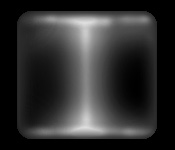
Add some more stuff to it in order to obtain what you want ;-)
Or use as an element of a larger template or interface