Open a new 350px x 150 px document with transparent background.
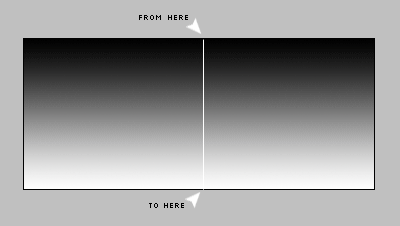
Hit D on your keyboard and get the "Gradient Tool" (). Fill the selection with a "black to white" gradient starting from the top of image to the bottom.
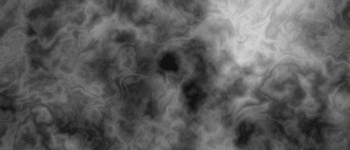
Now go on "Filter - Render - Difference Cloud", then hit "CTRL-f" until you have something like this:
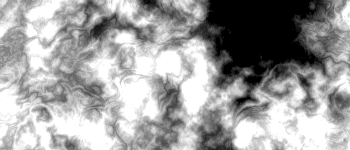
Now go on "Image - Adjustment - Invert" and then on "Image - Adjustment - Levels".
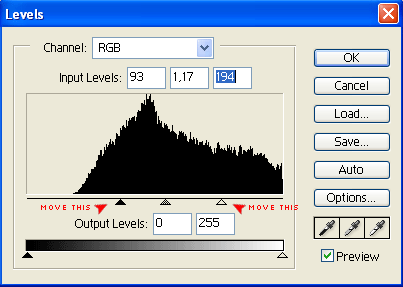
In the level panel magnifier the white zones moving the left pointer to right and the right pointer to left:
Now go on "Image - Adjustment - Color balance".
Play with color balance panel until you'll get a good blue tonality.
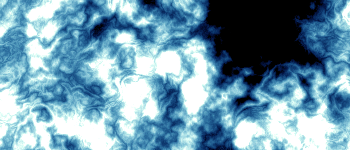
And now the final touch, go on "Filter - Brush Strokes - Angled Stroke" and set:
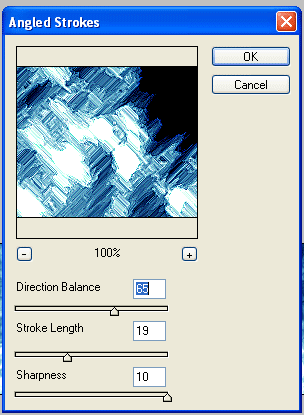
Try however to play with this setting to get different "Ice effects".
And this is my final results used for a signature:

