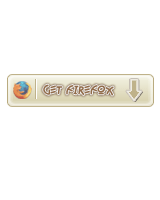
Open a new document (300px x 300px) and fill the background with white.
Create now a new layer and with the "Rounded Rectangle Tool" (
 ) draw a rectangle 145 px x 30 px.
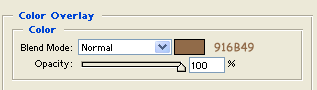
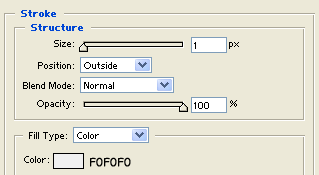
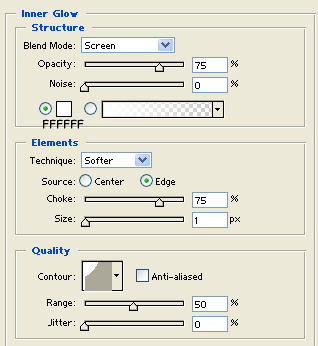
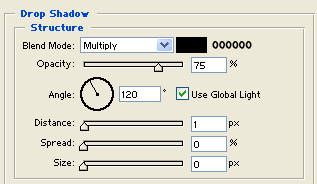
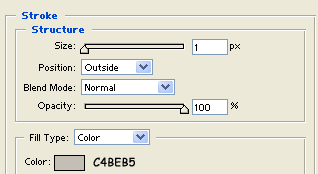
Open the blending option panel for this layer and set:
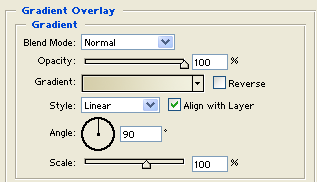
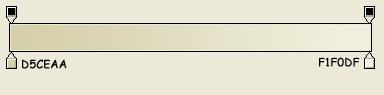
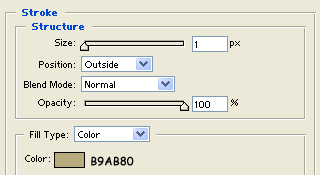
Create a new level and set the zoom of the page at 300%
With the eyedropper tool pick the color of the edge of the rectangle and with the "Pencil Tool" (
 ) using a 1px brush draw a little vertical line inside the button.
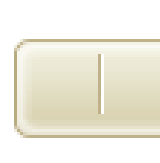
Right, our button is now finished, I've personalized it in this way:
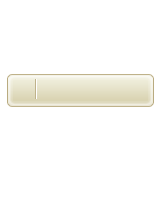
Create a new layer and import the Firefox icon on the stage, resize it (Ctrl-T) and set the opacity to 60%
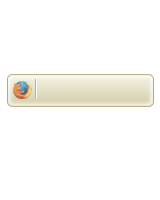
Now get the text tool and type in "Get Firefox" (I've used Amazon font)
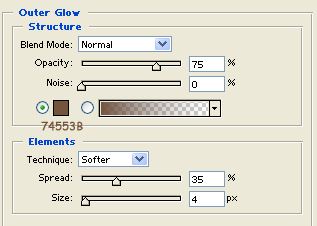
Open the blending options panel and set:
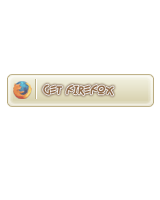
Here is the result:
Create now a new layer and get the "Shape Tool", select an arrow shape
and draw it on the stage (rotate it if needed), then open the blending option panel and set:
Finished! Your "Get Firefox" button is ready to use.