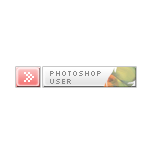
Open a new document 300px x 300 px and fill the background with white.
Create a new layer and with the "rectangular marquee tool" draw a rectangle with 100px x 20 px dimension and fill with black (Edit - Fill - Black).


Open the Blending Options panel and set:
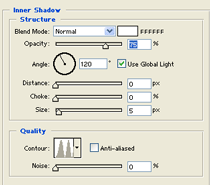
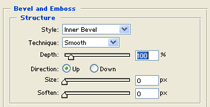
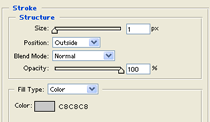
Gradient Overlay:
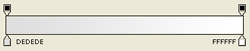
Create now a new layer, and with the "Rectangular Marquee Tool" draw a 25px x 20 px rectangle and fill it with black.

Open the Blending Option panel and use this settings:
Gradient Overlay:
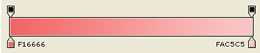
This is the results:
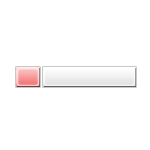
Now using a "Silkscreen" font ( Download it here ) type in your text on the button.
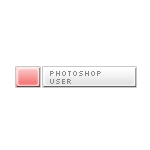
Create a new layer and zoom the image to 300%.
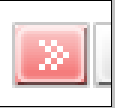
With a white pencil tool (1px size) draw pixel by pixel the arrow in figure (every square is made with 4 little square):
Well, and now the final touch!
Create a new layer and import the icon of the program (in this case Adobe Photoshop).
Resize it and place it across the button (let it a little bigger than the button).
Now ctrl-click on the layer with the button (but the layer active is still the layer with the icon) and go to "Select - Inverse", hit "Del" on your keyboard and set the opacity of the level with the icon to 60%.
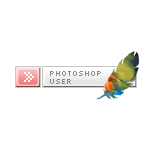
And this is the final results: