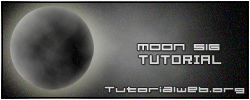
Open a new 250 x 100 document with transparent background.
Create a new layer and fill it with black, then go to "Filters - Add noise" and set an amount of 10 - Gaussian - Monochromatic.

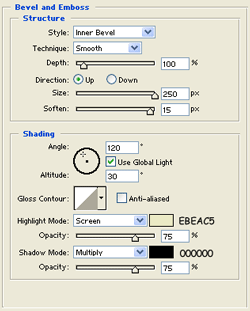
Create a new layer and with the "Elliptical Marquee Tool" draw a circle on the stage, apply a "Filter > Render > Clouds" and a "Filter > Render > Difference clouds" (remember that background color must be white and the foreground color must be black), then open the blending options panel and use this settings:
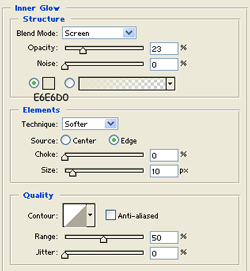
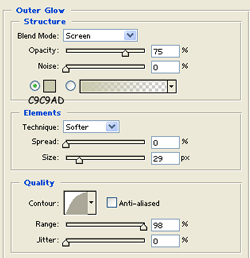
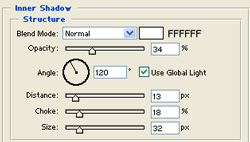
Here is the result:
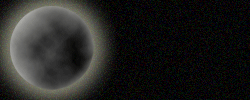
Your moon is done. Now we'll add some effect.
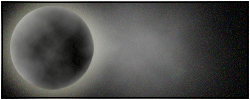
Create a new level below the moon level, hit D on your keyboard and then go to "Filters - Render - Clouds".
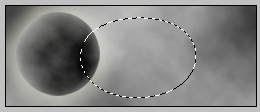
Now get the Lasso tool (clicking L) and select a part of the clouds:
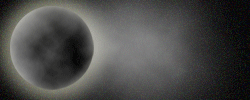
Now click on "Add layer mask".

Create a new layer and go to: "Select - All" and then on: "Edit - Stroke".
Set the locations to inside, the size to 3px with black color and hit ok.
Repeat previous step, changing the size to 2 and the blending mode to clear, then hit ok.
Repeat again, changing the size to 1px white, and the blending mode to normal.
Now using some Pixel fonts, add your text to the signature, using a white color with black stroke.
This is my final works: