


Start photoshop with a new document, large enough to accommodate your texts.
Use the Type tool to create your text.
Then duplicate this text layer so you end up having 2 identical layers.
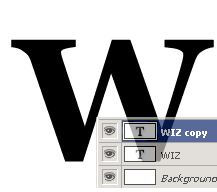
First, we will work with the TOP text layer.
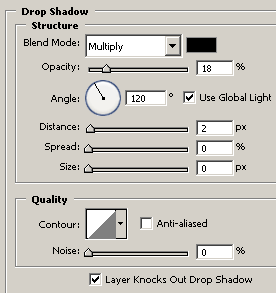
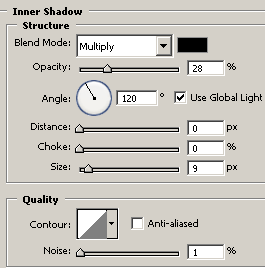
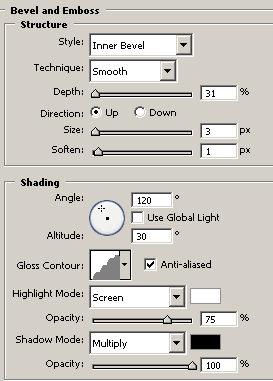
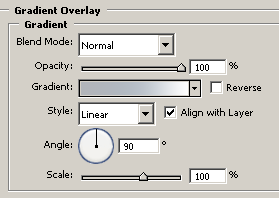
Apply the following Layer styles to the top text layer. (Layer->Layer Style->....)
Drop Shadow
Inner Shadow
Bevel and Emboss
Gradient Overlay
Now, make sure your still working on the top layer, then go to Layer->Rasterize->Type
After this, the top layer text will no longer be editable.

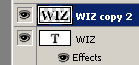
Now hide the top layer by clicking on the "eye" icon next to it, so we can see the bottom text layer.

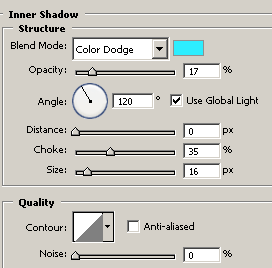
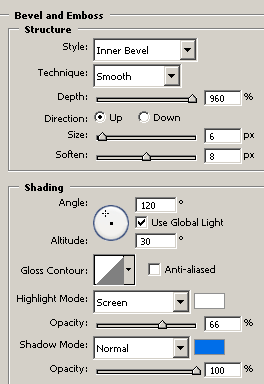
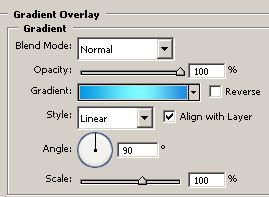
Now apply the following layer styles to the bottom text layer:
Inner Shadow
Bevel and Emboss
Gradient Overlay
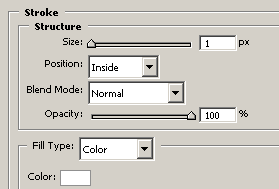
Stroke

Now, show the top layer by enabling the eye icon again, you will now see the top text layer, the bottom layer hidden underneath.
Now select your Eraser tool, using a Hard Edge brush, and partially erase the top text layer, revealing the bottom layer...
This part is where you can get creative and erase whatever part you want, using different brush sizes...



Download .psd file here.
