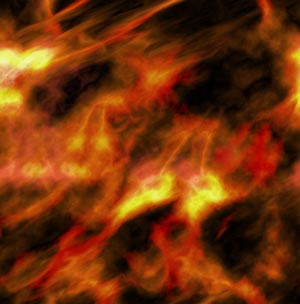
Create a Lava flow with steam
1. Make a new document 500px x 500px with white fill Reset and exchange swatches (d)(x)
2. Filter/Render/Clouds
3. Filter/Render/Difference Clouds
4. Apply this effect another three times (Cntrl + F)
5. Image/Adjustment/Hue Saturation (Cntl + U) Use these Settings: With colorize checked Hue: 0 Saturation: 60 Lightness: 0
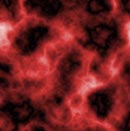
6. Make a new layer (Alt + Cntrl + Shift + N)
7. Apply steps 2 to 4 to the new layer and then set the layer's mode to Overlay
8. Image/Adjustment/Hue Saturation (Cntl + U) Use these settings: With colorize checked Hue: 90 Saturation: 80 Lightness: 0 Once done merge visible (Cntl + E)
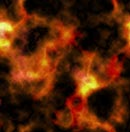
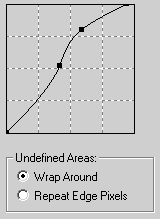
9. Duplicate the layer and apply the following effect on it. Filter/Distort/Shear undefined areas: Check Wrap Around Make the line look like wavy forward slash (/) or something similar to below
10. Set the current layer's mode to Lighten and you should get the effect of steam rising up through your lava flow.
This is what I ended up with. Hope you had fun!