


1. Next you will add the blue globe to the transparent background of Globe.PSD. Choose the elliptical selection tool
 . In the options palette choose "Fixed Size" as the style with a width of 48 and a height of 48 pixels. Make sure "Feather" is set to zero and the "Anti-aliased" box is checked. Click the mouse just inside the upper left corner of the image. Save the selection either by clicking the "Save Selection as a Channel" button in the channels palette or by the command:
Select > Save Selection...
You will use this selection to edit the individual map layers.
2. Set the foreground and background colors to the following RGB values:
Foreground: R=0 G=255 B=255 (cyan)
Background: R=0 G=65 B=97 (dark blue)
3. Using the gradient fill tool
 and the default midpoint of 50% between the two colors, in the options palette set the mode to "Normal", the gradient to "Foreground to Background" and the type to "Radial". Make sure the "Mask" and "Dither" boxes are not checked. Click near the upper right edge of the selection and drag the mouse from top left towards the bottom right using the image below as a guide, then release the mouse button:
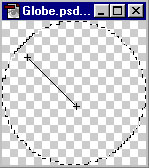
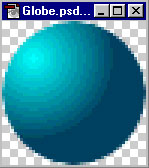
4. If you're lucky you'll have an image much like the one below. If not, you can press Cmd+Z / Ctrl+Z to undo, then try it again:
5. Opt-Click / Alt-click on far left square in the layers palette next to Layer 1. That will make the little eye icon appear in the square indicating you are making Layer 1 visible.
6. Click the following command: Filter > Distort > Spherize
Set the mode to "Normal" and the amount to 100%.
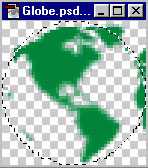
Your first layer in Globe.PSD should look like the following:
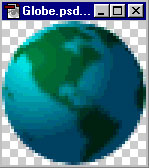
7. Set the layer mode to "Multiply". This will apply the shading of the globe to the newly pasted layers giving them depth and shape:
8. Hide Layer 1 and make Layer 2 the visible layer by Opt/Alt-clicking on the little square on the far left of the layer. Press Ctrl-F to repeat the distort filter, then set the layer mode to "Multiply". Repeat this step for the Layers 3 through 11:
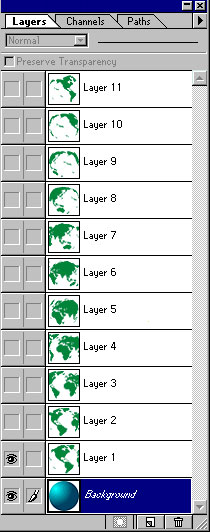
9. You will now export each layer with the globe background as individual GIF files. As you do this you will trim away any excess pixels in the layers so each frame will be perfectly round. First restore the default black foreground and white background colors by clicking on the little black and white squares in the tool palette next to where the foreground and background colors are displayed. Press Sift-Ctrl "I" or click the command: Select > Inverse
Then press the delete key. This will make a perfect circular selection for export:
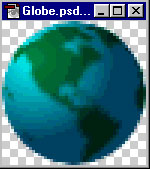
To export each frame as a GIF file use the command: File > Export > GIF89a Export
Set the palette option to "Adaptive" and the colors to 256 in the export dialog box. You can save the layers as Globe01.GIF, Globe02.GIF, Globe03.GIF, etc.
10. Repeat step 9 for each layer making sure that only one layer plus the background is visible at a time.
Note: Photoshop® version 5.5 includes Adobe® ImageReady® which provides a much faster way to animate the frames. There is no need to export each frame as individual GIF files with ImageReady. The following steps are included for those who don't have ImageReady or other software that will make an animated GIF directly from layers.
