Note: This tutorial is done by Adobe Photoshop 7.0
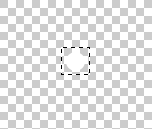
1. Open a new window with WIDTH 300, HEIGHT 200, and transparent background. Draw a 20x20 pixel white circle on it as as shown below. Select it with a Rectangular Marquee Tool
 and go to Edit > Define Pattern and give a name like circle or something.
2. Make a new layer and fill it with white, delete the one with the circle we don't need that anymore. Make another new layer, choose Paint Bucket Tool (G) - Select your circle pattern and fill the new layer with it.

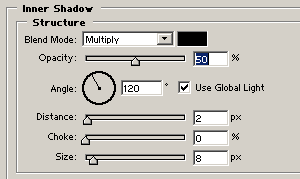
3. Select the layer with the Pattern and choose Blending Modes > Inner shadow Select the Opacity 50, Distance 2, and Size 8 as shown below. Click OK.
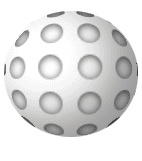
4. By now you should have an Image like this.

5. Choose Elliptical Marquee Tool
 and make a round circle in the middle of an image on the layer with the pattern.
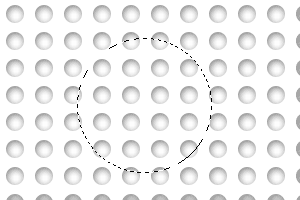
Go to Filters > Distort > Spherize Choose Amount 80% and click OK.
6. Go to Select > Inverse and press delete button on the keyboard to get rid of the sides.
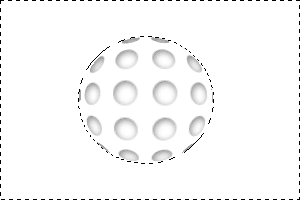
Now selection still on, create one more layer and go to Select > Inverse then fill the selection with white. Deselect it Ctrl + D; What we want to do here is, to create a white circle to merge it with the pattern layer.
7. Dublicate your pattern layer by dragging it to New Layer icon
 on the layers pallette. Drag the dublicate layer on top of the white circle layer. Select the white cirlce layer and link it with the pattern layer dublicate and press Ctrl + E to merge them, or you can go to Layers > Merge Linked
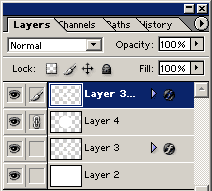
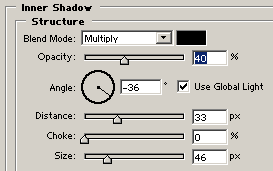
8. Select your merged layer and go to Blending Options > Inner Shadow and select the fields as shown below. Opacity 40, Angle -36, Distance 33, Choke 0, and Size 46.
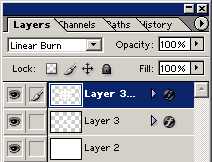
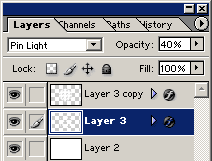
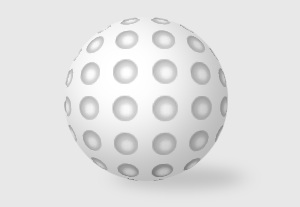
9. Choose Linear Burn for the upper layer and Pin Light for the lower layer. And set lower layers Opacity to 40%. That is it you should have your 3D ball now. You can tweak it some more by adding background and adding shadow...etc.