1. Start by create a new document 250 x 250 and fill the background with black. Create a new layer, choose any colour you want as your foreground colour and make a heart with the Custom Shape Tool (C)
 .
.

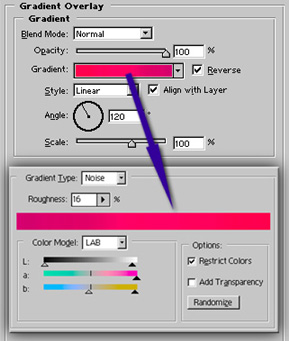
2. Apply a gradient overlay, Layer > Layer Style > Gradient Overlay.
Blend Mode: Normal
Opacity: 100%
Style: Linear
Angle: 120
Scale: 100%
Open the Gradient option by clicking on the gradient and enter the following options:
Gradient type: Noise
Roughness 16%
Colour mode: Lab
Option: Restrict Colors.

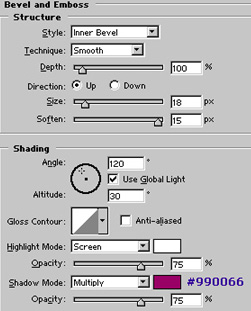
3. Apply Bevel and Emboss, Layer > Layer Style > Bevel and Emboss.
Style: Inner Bevel
Size: 18 px
Soften: 15 px
Angle: 120
Attitude: 30
Shadow Mode: Multiply, #990066

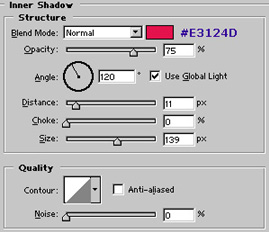
4. I've also added some Inner Shadow to smoothen the gradient a bit.
Blend mode: normal, #E3124D
Distance: 11 px
Size: 139 px