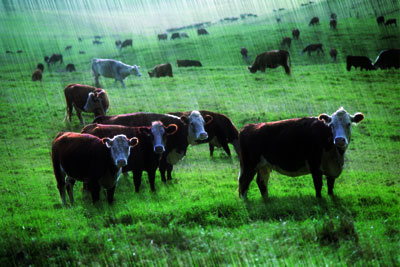
1. Open Photoshop. Open Image to apply Rain effect.
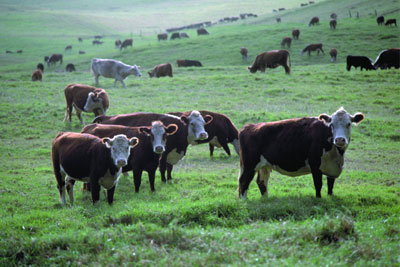
2. Make a Duplicate of the image layer and keep it selected.
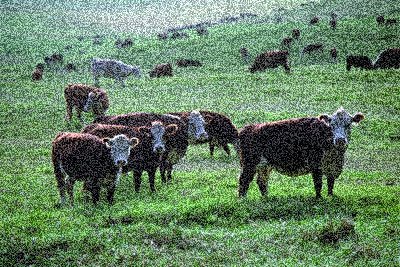
Filter > Noise > Add Noise (Monochromatic, Uniform, Amount 25%)
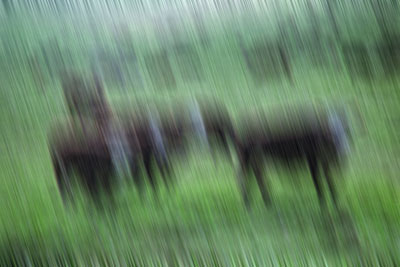
3. Filter > Blur > Motion Blur (Angle - 73 Distance: 40 Pixels)
4. Change the top layer mode to "Overlay"
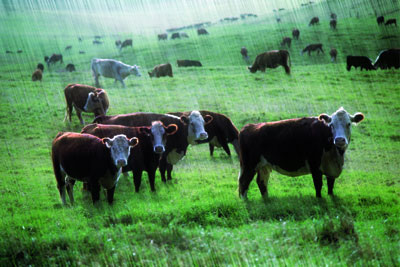
5. Add New Layer and fill it with black color. Change the layer mode to "Soft Light" with 40% Opacity