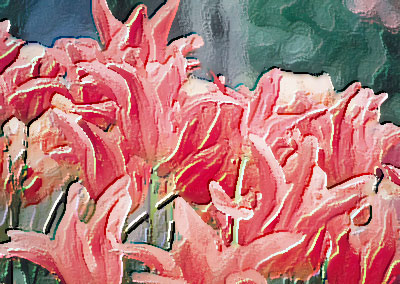
1. Open Photoshop. Open Image to apply Emboss effect.
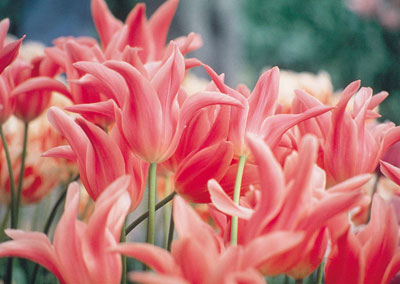
2. Filter > Artistic > Dry Brush
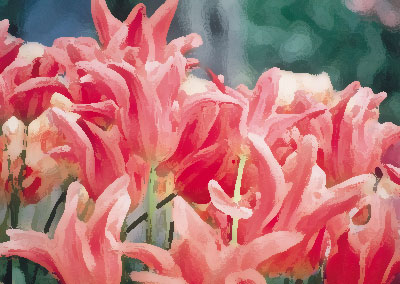
3. Make a Duplicate of Background Layer and keep the duplicate layer selected.
Filter > Stylize > Emboss (Angle: 135 Height: 2 Pixels Amount: 100%)

4. Change the top layer mode to "Hard Light ". Keep the top layer selected.
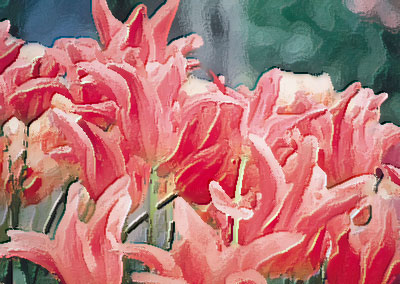
5. Image > Adjustments > Brightness/Contrast (Brightness: +1 Contrast: +45)