

Example:
Open SwishMAx set your movie width an height i have used 200 x 150 pixels with a white background
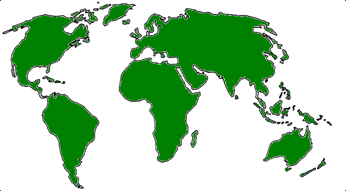
First of all download the world map image
Step. 1
Select the Ellipse tool, from the tools layout, draw a circle whilst holding down the Shift button.
Name the circle mask and colour it #0099FF see Fig.1 below.
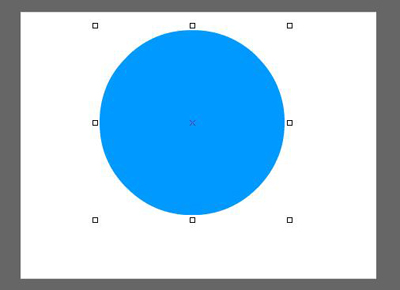
Fig.1
Step. 2
Copy the mask shape and paste in place twice. rename one of the shapes sea and the other overlay
Make sure that they are in the ascending order overlay, sea and mask
Select the overlay shape and choose Linear Gradient with the colours running from solid white #FFFFFF
To transparent blue #0099FF and rotate the shape by 90 degrees.
Now select the sea shape and give a Linear Gradient of light blue #0099FF to dark blue #0066FF and rotate by 90 degrees see Fig.2 below.
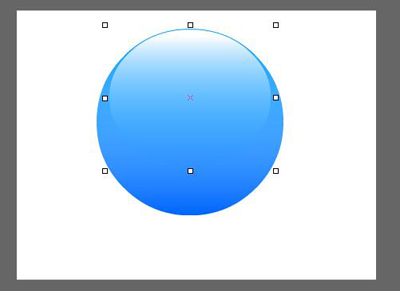
Fig.2
Step. 3
Using the Ellipse tool, create an oval shape with a Radial Gradient
Give it the colours light blue #99FFFF to transparent darker blue #0099FF
Place at the base of the globe and name light see Fig.3 below
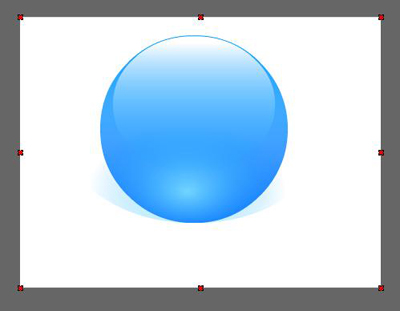
Fig.3
Step. 4
Now Import the world-map.PNG graphic previously downloaded from the link at the beginning of the tutorial.
And duplicate two more times, so you have 3 copies all at the side of each other group together as a shape and name Top-Map, now place the middle map image in the center of the globe.
Move the Top-Map underneath overlay and light see Fig.4 below.

Fig.4
Step. 5
Now duplicate the Top-Map shape and name as Bottom-Map
Select the Bottom-Map and choose Transform and then flip Horizontal
Now click on the image properties and set as seen in Fig.5
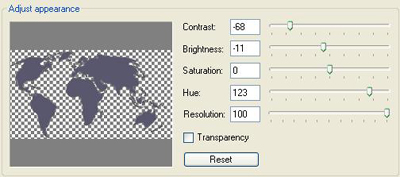
Fig.5
Now align Bottom-Map so that the 2 middle South American Continents are kissing one another see Fig.6.
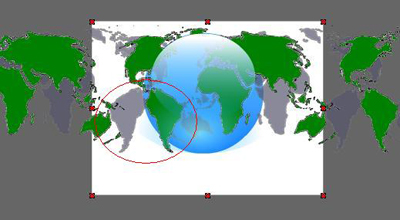
Fig.6
Step. 6
Now select Top-Map and on the timeline give it a move action over 100 frames.
Do the same for the Bottom-Map see Fig.7 below.
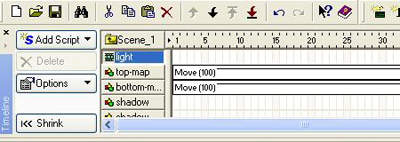
Fig.7
Now highlight the Top-Map move action on the timeline now using the left arrow key
Move the map until the Two South American Continents are kissing one another again.
D the same again for the Bottom-Map image but this time use the right arrow key.
You have now created the map animation for the globe.
Step. 7
Select everything on the stage and group together as a sprite
Name the sprite globe and select use bottom object as mask see Fig.8 below
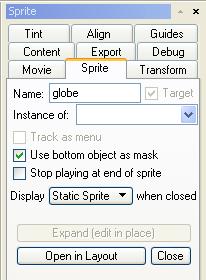
Fig.8
Step. 8
Now for adding the shading to the globe
Select the rectangle tool and drag a square to cover the globe choose Radial Gradient and give a colour of Black #000000 to Transparent Light Blue #0099FF.
See Fig.9 below.
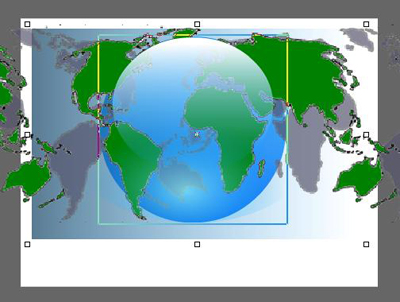
Fig.9
Duplicate the same rectangle, rotate and place at the bottom, so black is at the bottom, with the transparent blue running towards the top of the globe.
Duplicate once more place at the right hand side, this time change the black to white #FFFFFF
See Fig.10 below.
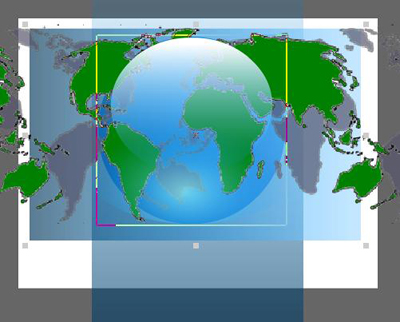
Fig.10
To add the shadow at the bottom, use the Ellipse tool drag an oval out place it underneath the globe sprite name it shadow and give a Radial Gradient of black to transparent white.
That's it Press Ctrl+T to test in player you will be amazed of the outcome.
