


The following tutorial will teach you how to create a rather smooth selection using the gaussian blur filter and curves. This is most useful when you want to move an image in with another and make it appear like it was apart of that image.
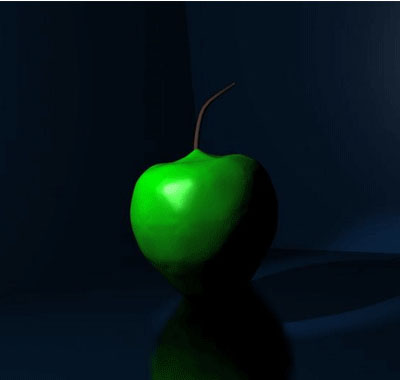
Start by opening up an image. I found this image of an apple on google and scaled it a bit as it was a bit big to fit on this tutorial page.
Use the magnetic lasso tool to select the image. If you find that you haven't selected enough, press the shift key and select around the edges that haven't been selected yet. This will add on to your selection. Pressing ctrl will delete parts of your selection.
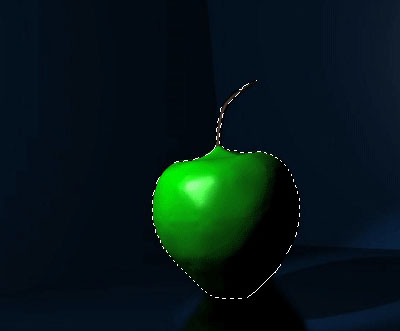
I suggest that you save your selection so that you can go back to it. Go to Select > Save selection. Make sure that your selection is saving to the document you have opened. Name this selection apple and press ok.
Drag this selection off the page or copy and paste it somewhere else. Notice all the jagged edges? The following steps will teach you how to smooth these out.
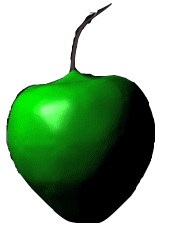
Go back to your original image and load in your apple selection.
Go into quick mask mode by pressing q or by pressing this button

in the tool box. You may not notice any changes in the appearance of the image. Most of the time though, your image will have a ting red.
While in quick mask mode, go to Filter>Blur>Gaussian blur and use the following settings:
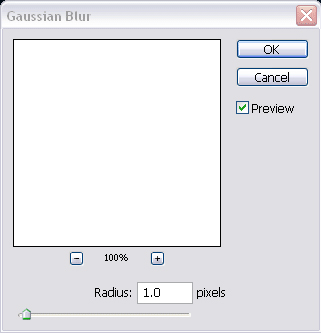
Press ok. Now, go into the curves dialog box by going to Image>Adjustments>Curves and move the square dot to where I have it. After moving it a bit, it will give you an option to type in your numbers. Put in the following settings:
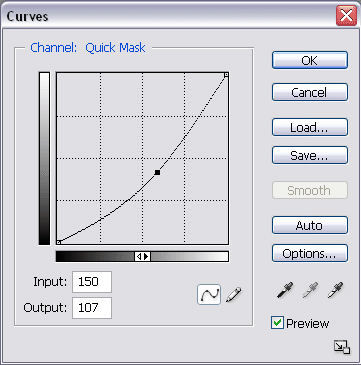
Press ok and then press q and exit quick mask mode.
Now drag your image or copy and paste it outside the document. Notice how the image selection now appears a bit smoother then the previous image you dragged over.
