

Step 1
Create a new image, 560x280, background white
Step 2
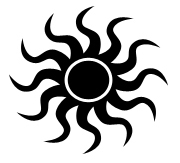
Create a new layer. Create something like this:
Step 3
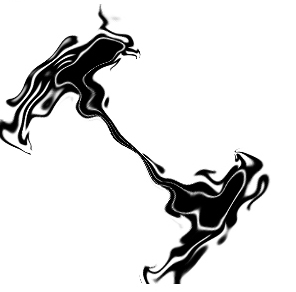
Go to Filter>Distort>Wave and use the standard settings.
Do this several times until you get a cool 'Splash'.
This is what I have
Step 4
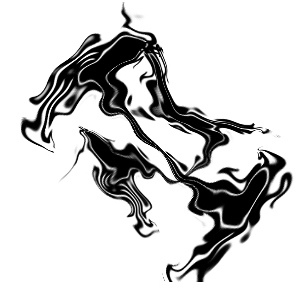
Duplicate the layer and rotate it 90 backwards.
Then Scale the duplicated layer a bit.
Then use the wave filter again.
Merge it Ctrl+E.
This is what I have
Step 5
Duplicate this layer.
Then go to Filter>Blur>Gaussian Blur with a radius of 3,8.
Then merge it again.
Step 6
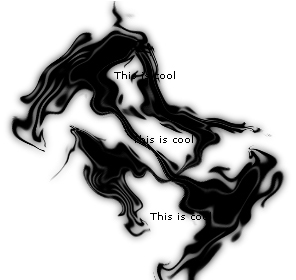
Viola! you have a great 'Splash' effect!
Step 7
It's cool when putting text under the 'Splash' layer.
