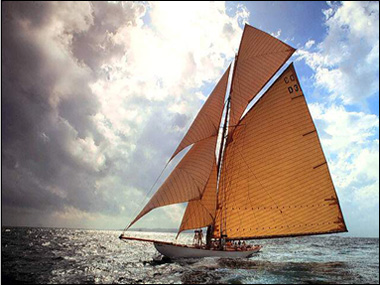
1. Open your file.
Start by opening an image you want to be framed.
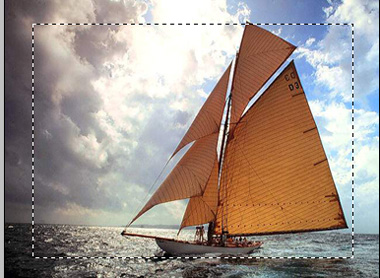
2. Create selection.
Using marquee tool create a wide rectangular selection.
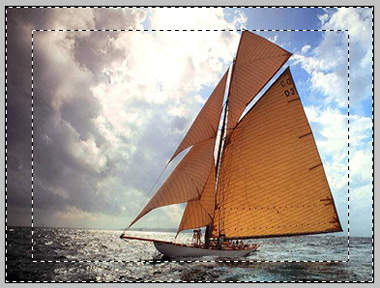
Inverse the selection by pressing Ctrl+Shift+I.
3. Set colors.
Define foreground and background color of your choice.
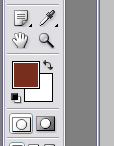
4. Frame.
Create new layer. Select foreground to background gradient and fill this layer with this gradient.
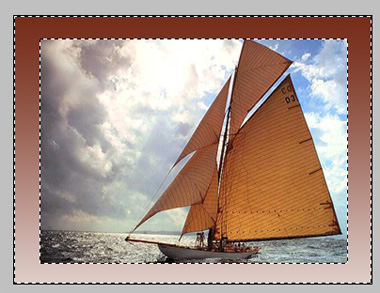
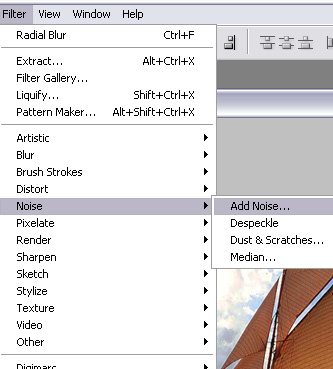
From filter menu select noise>>add noise.
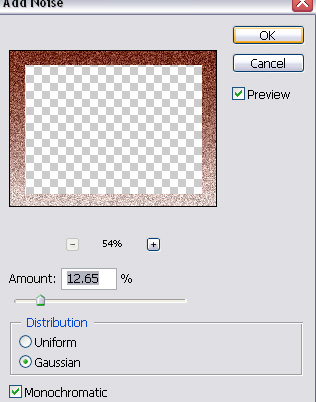
Use noise settings as shown.
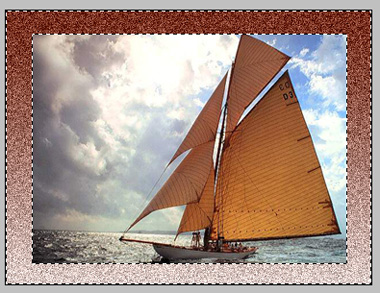
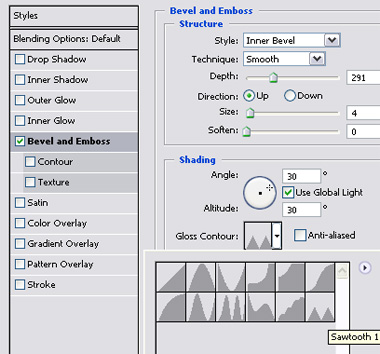
Double click frame layer to open layer style window and enable bevel & emboss. Use settings as shown.
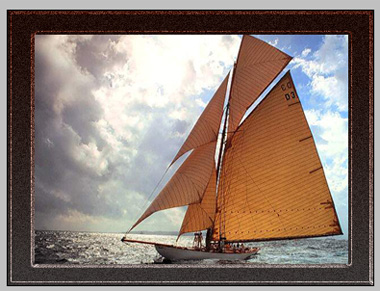
5. Done!
The image is framed in a nice artistic frame.