Step1:
Create a new image File > New (ctrl +n) set the width and height to:
Width =800
height = 600
Change the background color to white (#FFFFFF)
Step2:
Create a new layer, Layer>New>layer or (Shift+Ctrl+N). Use the Rectangular Marquee Tool (M)
 to create a rectangle in the shape of a note book paper. Use the Paint Bucket Tool (B)
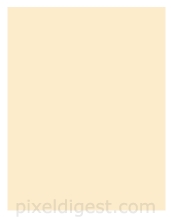
 and fill your rectangle with this color #fceccb. You should have something like I have below.
Step3:
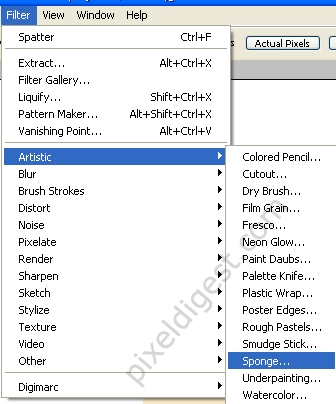
Click Filter >Artistic >Sponge as shown below.
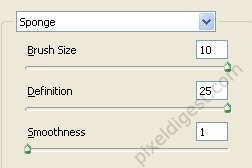
Change the Sponge setting to what I have below and click ok.
Step4:
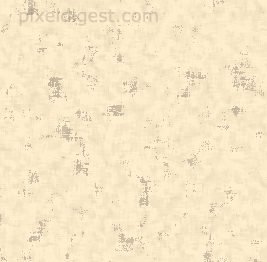
Your paper should look something like this.
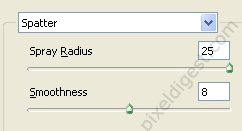
Now click Filter >Brush Stroke >Spatter and enter the setting below, click ok when you entered the setting.
Step5:
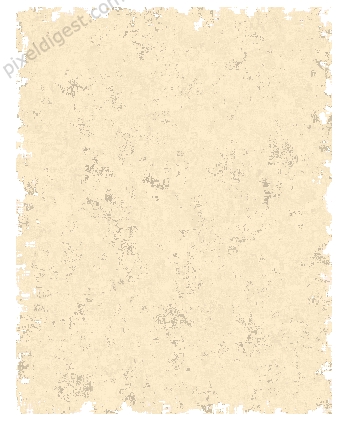
That's it, if you followed the instruction you should have something like what I have below.