


Step1:
Create a new images, File >New, (Ctrl + N). Set the Width (800) and Height(600). Change the background color to white #FFFFFF.
Step2:
Depending on what type of shape your want to make you need to find an image file that you can trace. I use the image below. Click on the image to enlarge and copy it if you want to use it.
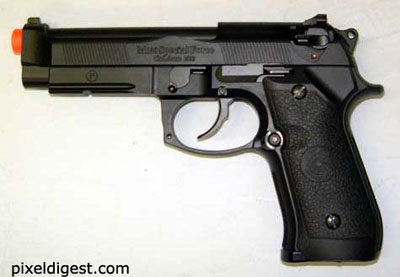
Step3:
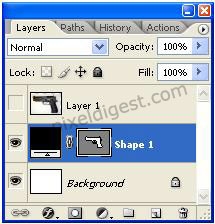
Copy and paste the image into Photoshop it should look like how I have it below. With the image layer above the background and the background layer should be selected.
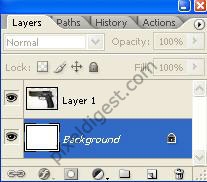
Step4:
With the background layer still selected click on the Pen Tool
 and add the setting below.


Now use the Pen Tool to trace the image, you can see how I did it below. Make sure you close your tracing.
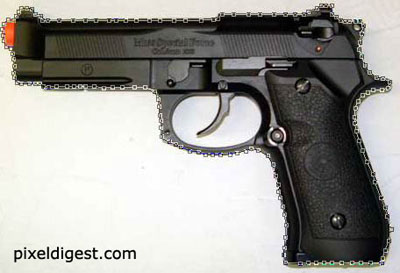
To draw the finger hole, and trigger you need to click on Subtract from selection
 . And trace the hold and trigger, as shown below.
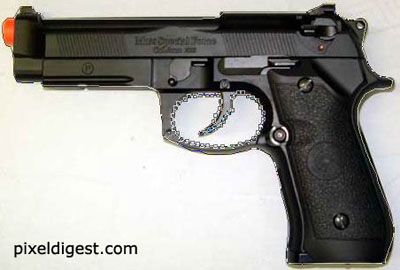
Step5:
Click on
 to hide the layer with your image. Do not worry about how the edges of your image look depending on the size of your shape it will clear up.
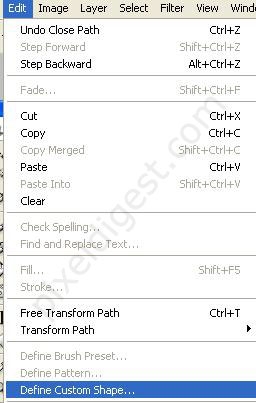
Click on Edit >Define Custom Shape
Step6:
Click on Custom Shape Tool
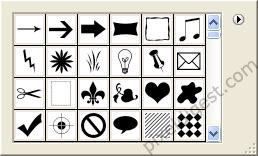
 , Click on the image next to the Shape: text and the menu below should come up. Scroll down and you should see your custom shape.
Step7:
That is it, you're finished. Here is my custom shape.

