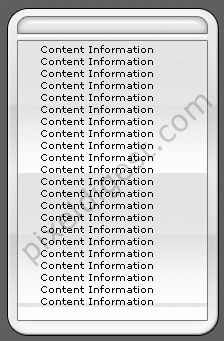
Step1:
I explained how to make content boxes in previous tutorials; you can click on the links below to take a look. On the other hand, you can click here to download the example shown above. I will be explaining how to Slice the content box and setting it up for use in FrontPage. Open the downloaded file into PhotoShop.
Step2:
Zoom into the content box to give your self a better view of what you need to slice. Zooming into the image also helps to align your slice boxes. Now click on the Slice Tool
 ,hold your mouse down, and slice around the edges of your content box as shown below. Zoom into the image to make sure that your slice box is touching the sides of your content box.
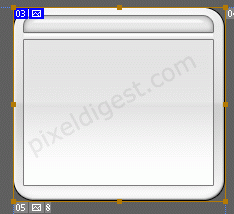
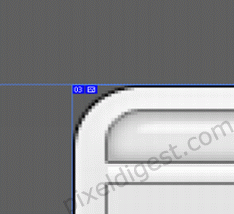
Step3:
Now click on the Slice Tool
and slice the 4 edges of your content box as shown below. Zoom into your box and make sure that the slice you just created over lap the previous one. You will know that is it overlapping by the color of the line change its color to green.
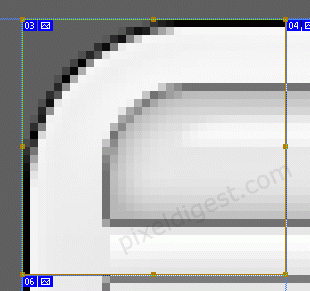
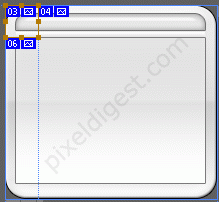
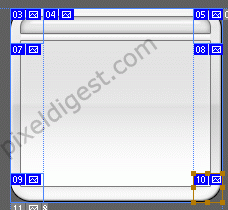
4 Sides Slices
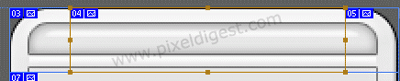
Now we need to slice the rest of the content box. It's very simple same as the previous steps click on the slice tool and zoom into the area you want to slice and slice the top middle of the content box, as shown below. Repeat this step for the bottom, left and right side of your content box.
The Numbers and Colors shows how I made the slices
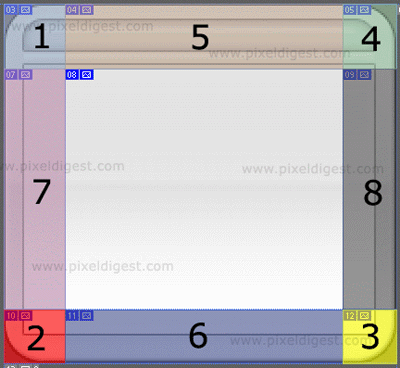
Step4:
With you content box sliced up, click on File> Save for Web.... save it to somewhere it's easy to find. It will save the file to a folder with each slice as a separate file.
Step4:
Open FrontPage, change the Background color to #5F5F5F, and create the tables I have below.
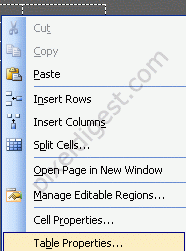
Right click on the table and click on Table Prosperities as shown below. The Table Properties window will come up change the Boarder size to 0.
In FrontPage click on the Insert Picture From File Icon
 and browse to the folder with your sliced images. Now all you need to do is add the images to the right cell.
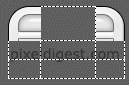
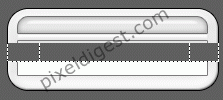
This is Important, in the cells in the middle of your content box. Right click on the cell and click on Cell Properties as shown below.
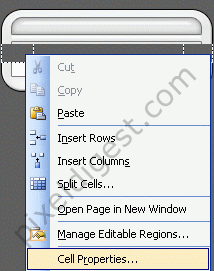
You will see the cell Properties window below.
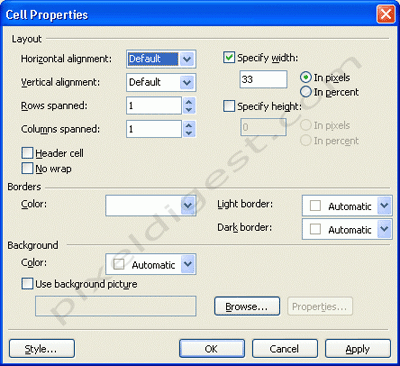
Click on the Browse button, browse to the folder, and click the image for the cell. Repeat this for the for the Left and Middle cells. This is done so if your text information is bigger then the content box, the image will auto adjust to the text information.
Step5:
That is it you are finished.