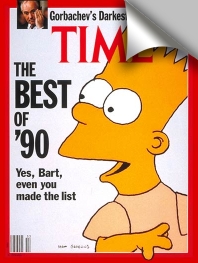
Step1:
Copy the magazine cover, Right click on the image and copy it, open up Photoshop and paste the image into your work area.
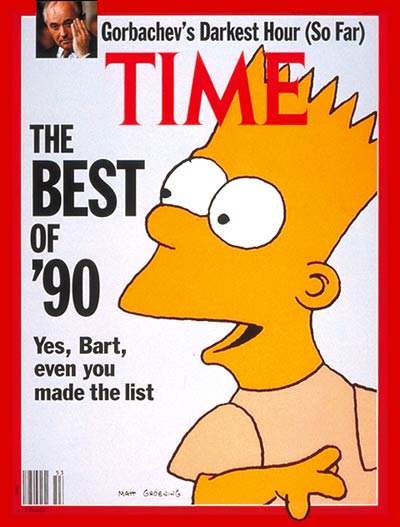
Make sure you have two layers one with the Simpson's magazine cover and your background layer. Change the background layer color to #c0c0c0
Step2:
Now Hold Ctrl and click on the magazine layer to select it, so it looks like the image below.
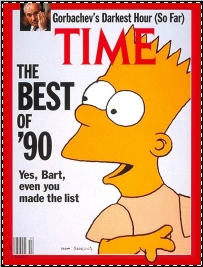
Click on the Polygonal Lasso Tool
 and select subtract from selection option.
 Subtract from your selection using the polygonal lasso tool as shown below
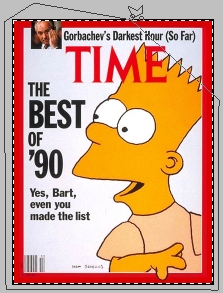
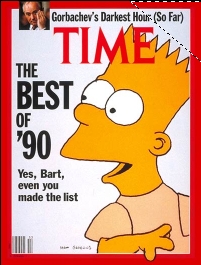
Subtract from your selection until you have only the edge of the magazine selected. Make sure you are still on the magazine layer and with the edge still selected press you Delete key. If you did it right your image will look like my image below.
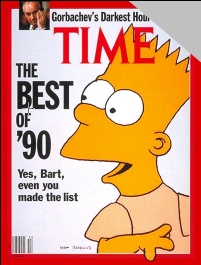
Now hold Ctrl and click on your layer to select it, click on the Rectangular Marquee Tool and set the selection to Subtract From Selection
.
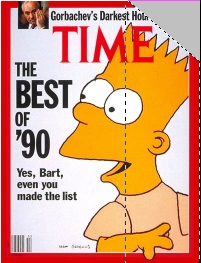
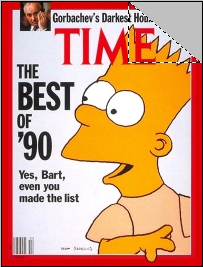
Step3:
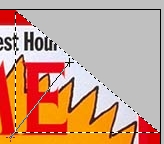
At this point your selection should look like the image on the right. Create a new layer, Click on the Gradient Tool
 usually hiding behind the paint bucket tool and apply the setting below.


color:#73726d --- color:#FFFFFF --- color:#9f9fa1 --- color:#9f9fa1
Apply the gradient from top going down to the point of your selection as shown in the image below. The
Gradient Direction
Gradient
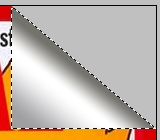
 select subtract from selection option
and subtract from your selection to get the curve as shown below.
select subtract from selection option
and subtract from your selection to get the curve as shown below.
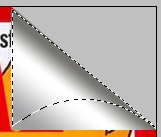
When your selection looks like the image above press Shift+Ctrl+I to inverse your selection and press the Delete key. If you did everything right you should have what I have below.
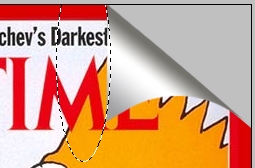
Still on the same layer we need to create another curve on the left hand side of the paper. Click on the Elliptical Marquee Tool
select the subtract from selection option
and subtract from the selection shown below.
Step4:
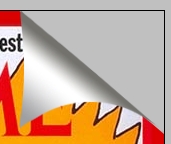
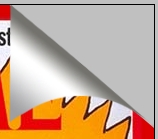
At the point your fold should look like the image above. Now right click on the fold layer, click Blending Options, and add the setting below.
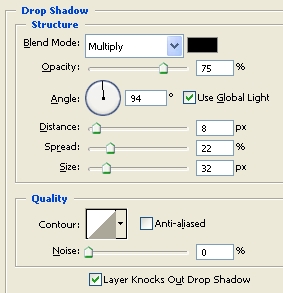
With the setting applied to the layer your image should look like what I have below.
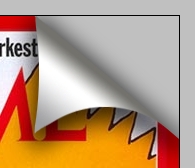
That is it, you are finished.