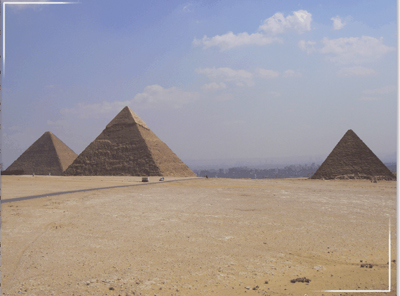
Now select the rectangular marquee tool and draw a box around the same size as mine.
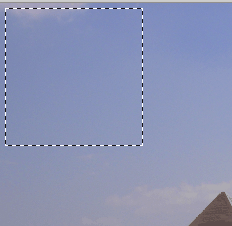
Now you need to make the border. Go to Select>Modify>Border and set the Border to 7px or any size you prefer. Now fill that area with white. Press CRT +D to remove the marching ants.
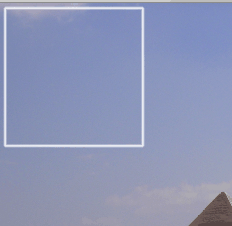
You are now left with a full square with a border. Get your eraser tool out and rub out the entire border on the right and the bottom.
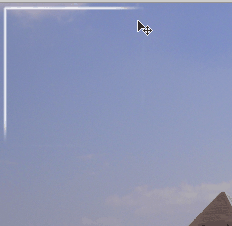
On the ends of the remaining lines set the opacity of the eraser tool to 56 and just blend out the ends.
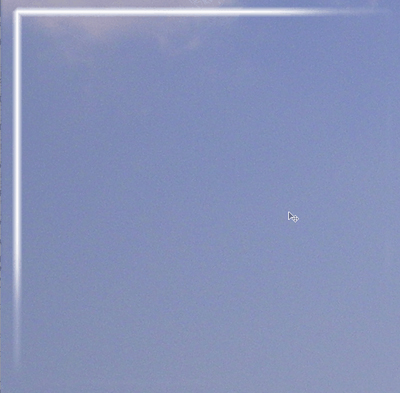
After you have don't that duplicate the layer by going to layer>duplicate layer. This will make it a bit brighter and more effective.
Nearly there! Make sure you select the top layer and then press crt+E to merge the border layers into one. Now duplicate the layer again and press crt+T to select free transform turn the border round till it is inline with the other border.
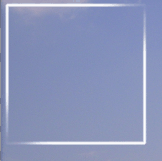
Now select the move tool and move the image to the bottom of the picture.
This would look allot better on a nice blue background i.e. an underwater photo.
And you are done!