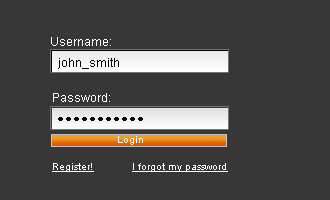
#1: Open a new image and have the size to be 500 width x 200 height
#2: After that is done, select the paint bucket and fill the background color with #373737
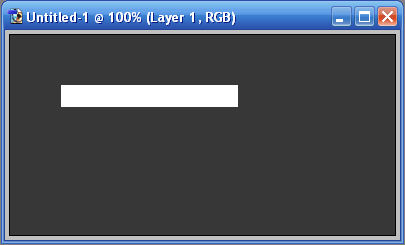
#3: Now select your marquee tool and draw a thin rectangle on your palette and fill it with the color white (#FFFFFF) using your paint bucket.
Example:
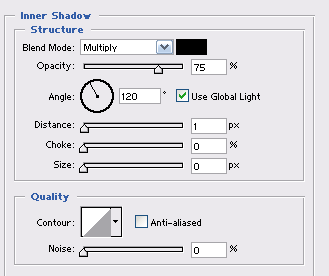
#4: Now to make this blank box look more attractive, we are going to add some depth to it. Follow these steps, 'Layer>Layer Style>Inner Shadow' and change yours to the following:
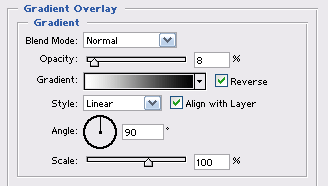
#5: We're going to add a gradient now for more depth. Click on 'Gradient Overlay' on the left, and your new menu will appear on the right. Change them to the following:
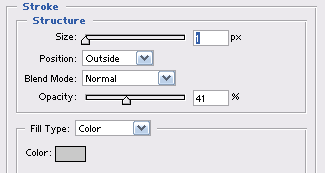
#6: Last step for the login box is to make it more visible, select 'Stroke' and of course, set your settings to mine. The color I used was: #C9C9C9
#7: Duplicate your layout for a password box, 'Right Click>Duplicate>Ok' and drag it down some. Your image should look something like mine:
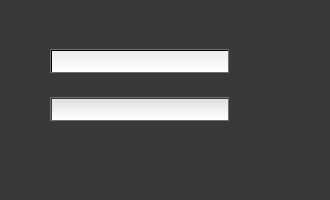
With some gradient buttons, and some text, you get the finished product.