#1: Open a new image, size is: 520x600 and set the background color to #312000 and fill it in.
#2: Create a new layer, Give it a name, and fill this with the color:#FFFFE9
#3: On the second layer (the one you just made), select the "Polygonal Lasso Tool"

#4: Now select the top right corner as shown in the following picture:
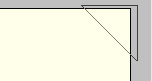
and Press CTRL+X OR in the top menubar: Edit>Cut
#5: Create a new layout and press CTRL+V to paste it or Edit>Paste
#6: You shouldn't be above to see it, so now click Layer>Layer Style>Outer Glow
#7: Apply the following settings:
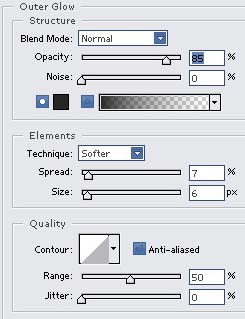
#8: Now we need to rotate it and place it so it looks like a corner: Edit>Free Transform>Rotate 180 and drag your corner up to the top right again until it snaps in place.
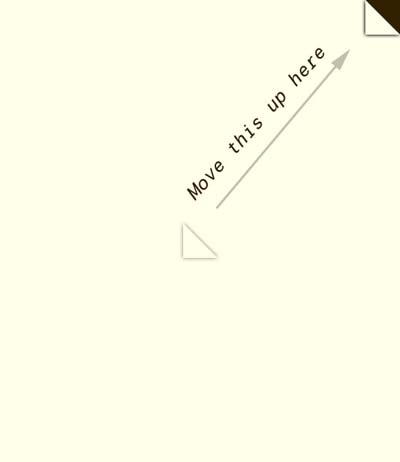
#9: Add some text or whatever else you want to add and here is my finished product.