#1: Create a new image. Mine was 300x100 and the background color I used was: 565656
#2: Make a new layer Layer>New>Layer (Shift+CTRL+N)', and select your 'Elliptical Marquee Tool'
#3: Zoom in 2 times, hold down the shift key and drag out a circle
#4: Fill your circle with a 'Linear Gradient' drag top too bottom of your choice.
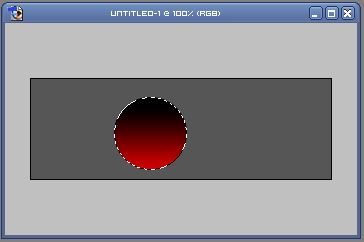
#5: Add a 1px black stroke too your ball.
#6: Create a new layer, and make a small oval and fill it with white (this is too make a little shine).
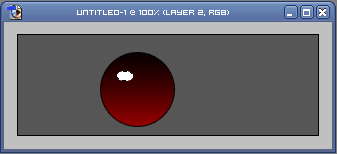
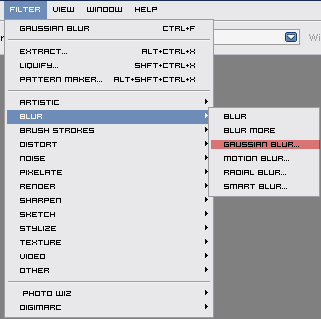
#7: Now add a 'Gaussian Blur' of 5.0
#8: Create another layer. Select your marquee tool, and make a "Black-n-White" gradient as shown.
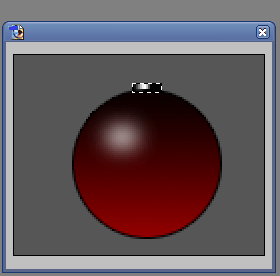
#9: Make another layer and add a 1px black line. Then Filter>Distort>Shear and distort it so it looks like a wire.
Done