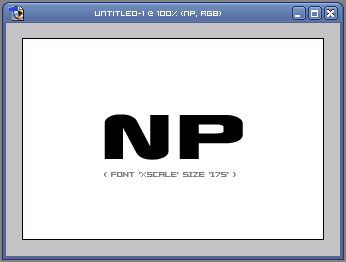
#1. Make a new document, 300x200 (or any size you want) white background.
#2. Create a new layer, and write your text on it.
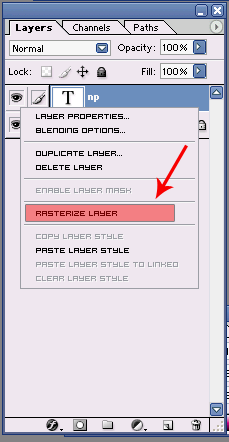
#3. Now right click on the text layer and click 'Rasterize'
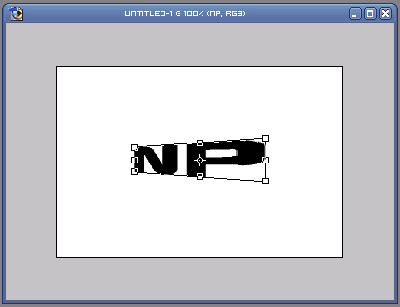
#4. Edit>Transform>Perspective, and for mine, I dragged the top left corner now, but you can do what ever you want.
#5. Hold 'Ctrl+Alt' down and press the 'UP Arrow Key' twice then press the 'Left Arrow Key' twice.
#6. Now hold down the 'Ctrl' key and click the top layer, it should be selected now.
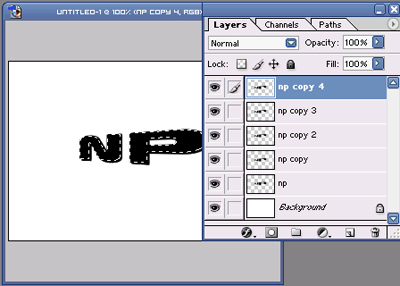
Click to enlarge
#7. Drag a gradient on it, now press 'Ctrl+E' to merge all the text layers together.
Add some more effects if you want and your done.