

Step1:
Create a new Flash Document with the dimension 550 as the width and 400 pixels as the height, set the background color to white.
Click on the Type Tool
 and type something on your work area. I typed PIXELDIGEST as you see in the image below using the Impact font.

Click on Frame 30 and press F6 to convert to keyframe as shown in the image below.
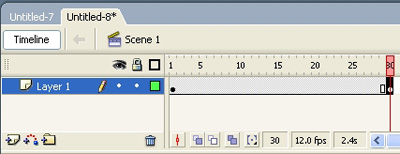
Step2:
Create a new layer by clicking on
 insert layer icon. Now on layer 2, click to Frame 1, and create an Oval, by clicking on the Oval Tool
 . Make sure the Oval is the same color as the background, and the stroke is set to no color as shown in the image below.

Create a circle as shown in the image below. The circle is on the second layer Frame 1, now click on Frame 30, and press F6. Still on Frame 30, move the circle show in the image below to the opposite side on the text. Frame 1 and 30 should both have circles.

On layer 2, right click on Frame 1 and Create Motion Tween as shown in the image below. Do the same for Frame 30.
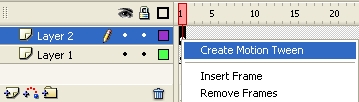
At this point your Layers and Frame should look like the image below.

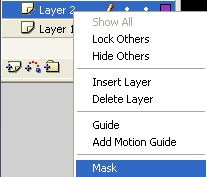
Right click on layer 2 and click on Mask as shown in the picture below.
Step3:
Now press enter, and play your move. Hope it come out to what you expected.
Play around with the movement of the circle and you can get different effects.
