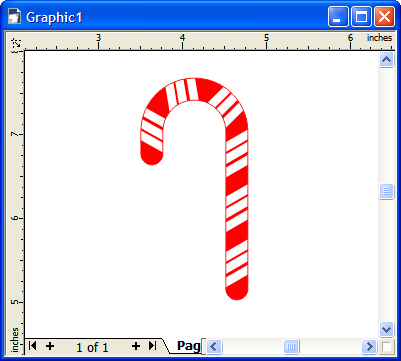
In this detailed tutorial, you'll learn how to create a tasty peppermint candy cane for the holidays!
Step 1
Select the Ellipse Tool, and create two ellipses, one of top of the other. The space between the two will result in the width of the candy cane.
Step 2
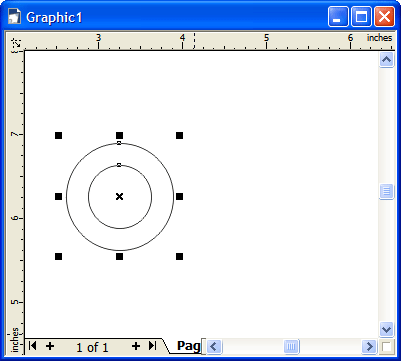
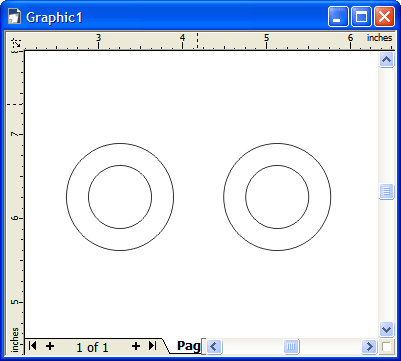
Now using the Pick Tool select both ellipses. You can hold down Shift to select multiple objects. Grab the left middle handle and while holding down Control drag to the right. You'll see a duplicate of the objects appear. To duplicate, right click with your mouse. Now move the duplicate ellipses over to the right a bit. You should have the following:
Step 3
Using the Rectangle Tool draw out a rectangle that lines up with the centers of the larger ellipses.
Step 4
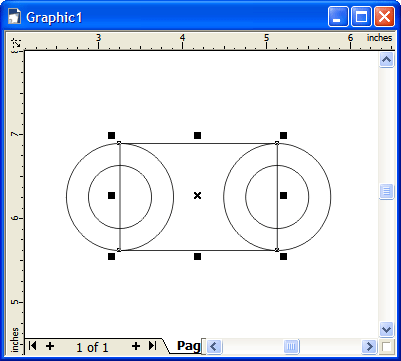
Now select the rectangle and the two larger ellipses. Again, holding down Shift allows to select multiple objects. We're going to weld these objects together. Make sure your Shaping Docker is available. Go to Window > Dockers > Shaping. Choose Weld. You don't need any other options selected and then click Weld To. Now hover your mouse over the rectangle and click. You should have the following:
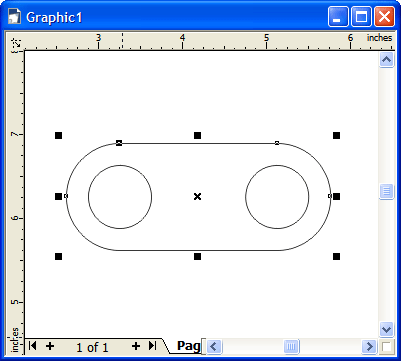
You won't be able to click on the smaller ellipses because the shape we just welded together is on top. So let's move it down to the bottom. To do this, select it and then hit Shift + Page Down.
Step 5
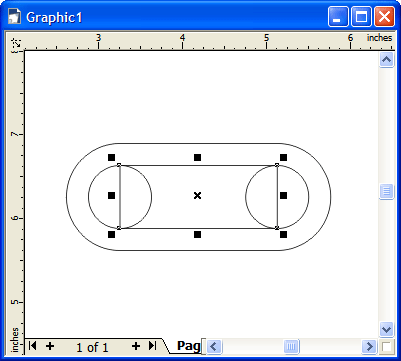
Using the Rectangle Tool draw out a rectangle that lines up with the centers of the smaller ellipses.
Step 6
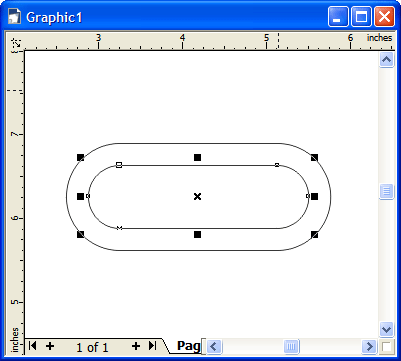
Now select the rectangle and the two smaller ellipses. Again, holding down Shift allows to select multiple objects. We're going to weld these objects together. Go to your Shaping Docker and choose Weld. You don't need any other options selected and then click Weld To. Now hover your mouse over the rectangle and click. You should have the following:
Step 7
Alright now we need to Trim the inner piece. With the Pick Tool select the inner piece. Go to your Shaping Docker and choose Trim. You don't need any other options selected and then click Trim. Now hover your mouse over the outer piece and click. You should have the following:
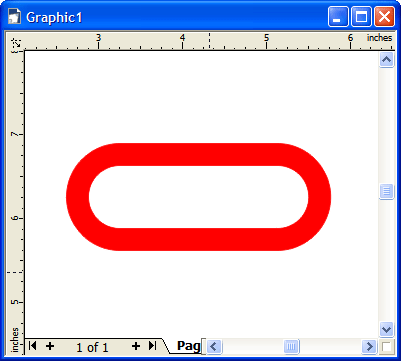
I added a fill and outline of red.
Step 8
Using the Rectangle Tool draw out a rectangle, which we'll use to trim down this shape.
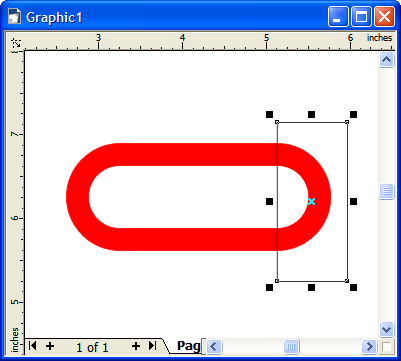
Go to your Shaping Docker and choose Trim. You don't need any other options selected and then click Trim. Now hover your mouse over the red shape and click. You should have the following:
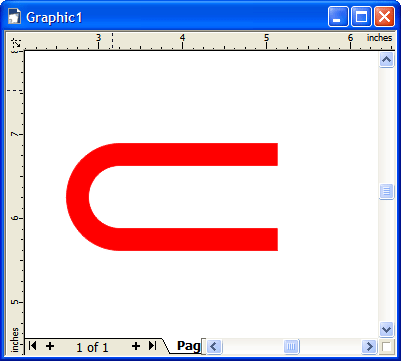
Step 9
Using the Rectangle Tool draw out another rectangle, which we'll use to trim down this shape even further.
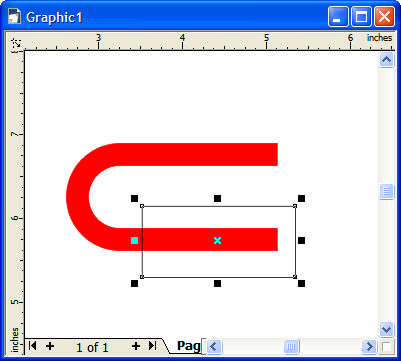
Go to your Shaping Docker and choose Trim. You don't need any other options selected and then click Trim. Now hover your mouse over the red shape and click. You should have the following:
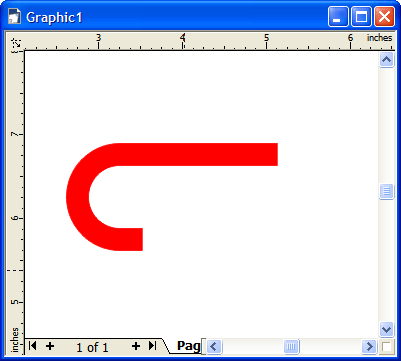
Step 10
It's starting to take shape now! Let's add the rounded ends now with some ellipses. Draw out two ellipses like the following:
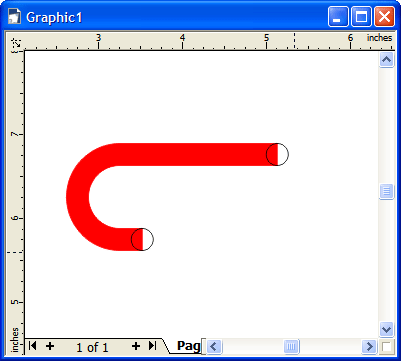
Select all three shapes. Go to your Shaping Docker and choose Weld. You don't need any other options selected and then click Weld To. Now hover your mouse over the red shape and click. You should have the following:
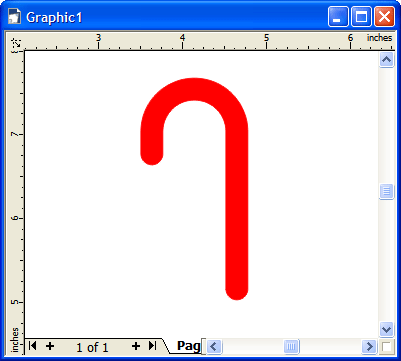
I also rotated the image.
Step 11
Last thing to do is add some stripes! Again, with the Rectangle Tool I created three small rectangles and rotated them a bit. I also grouped them together. I then made duplicates and placed them as follows:
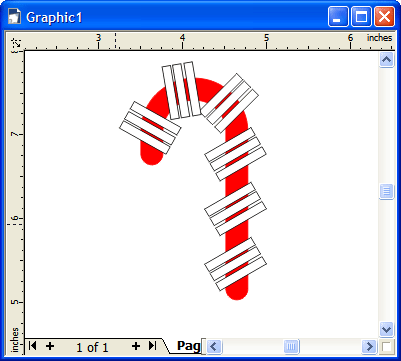
Now select all the stripes with the Pick Tool. Remove the black outline. Go to Effects > Power Clip > Place Inside Container and then click on the red candy cane. There you go! You have yourself a candy cane!