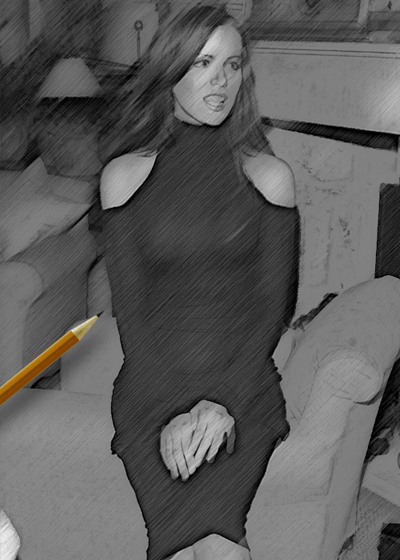
Learn how to turn photo's into drawings...
Step 1
Open up a photo of a random person. I chose the beautiful Kate Beckinsale that I picked after seeing the (super) movie Click...
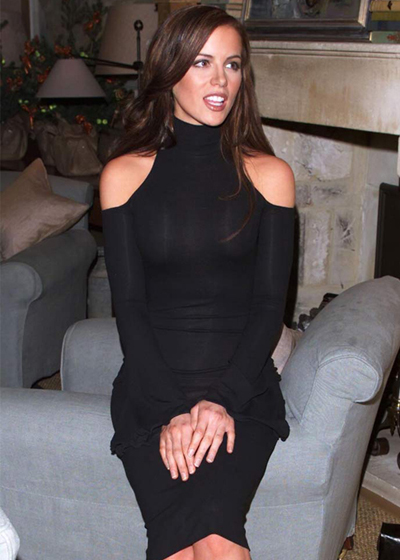
Step 2
Duplicate the original layer by pressing Ctrl+J. Then desaturate the image by pressing Ctrl+Shift+U;
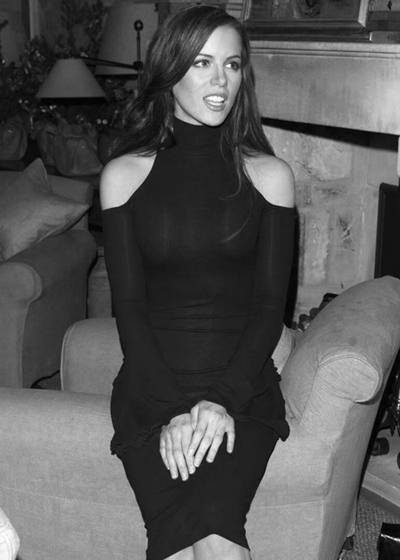
Step 3
The press Ctrl+J once more to duplicate this layer as well. Then press Ctrl+I to invert the colors;
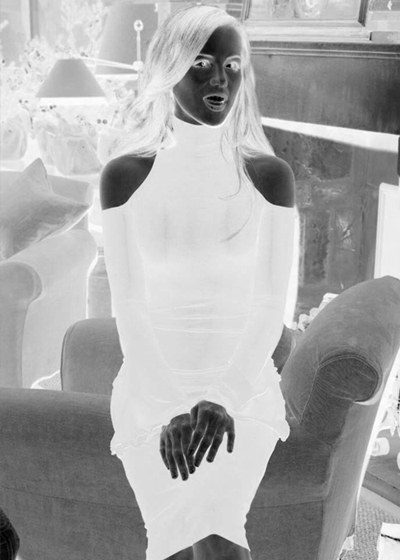
Step 4
Set the blending-mode to Color Dodge. But oh... it's all white. Not to worry, that's normal. Go to Filter>Blur>Gaussian Blur and choose a setting that will get you a result like mine below;
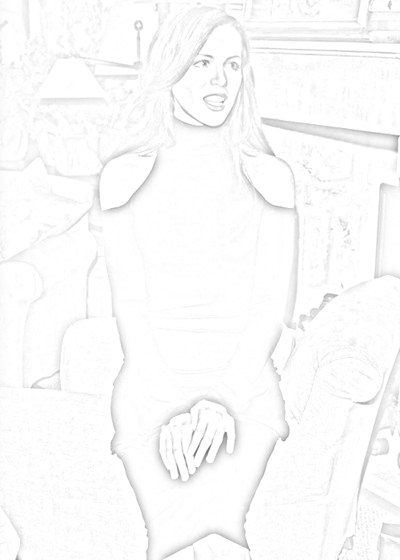
Step 5 Now duplicate the original photo again (layer 1) and press Ctrl+Shift+U again;
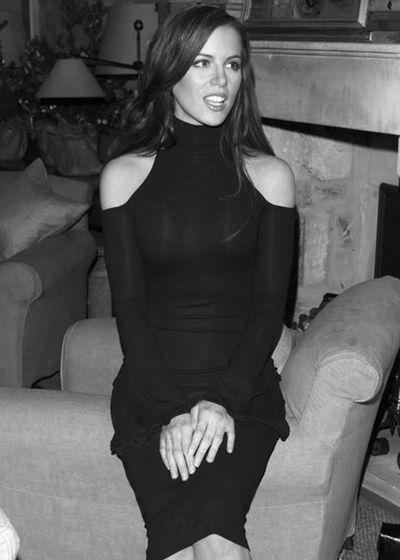
Step 6
Go to Filter>Noise>Add Noise and add some minor noise;
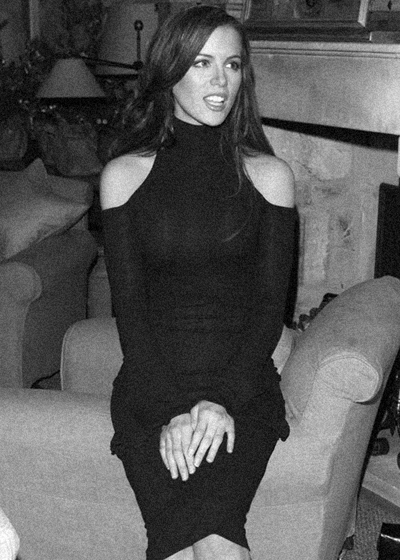
Step 7
Next, go to Filter>Brush Strokes>Angled Strokes and set the top slider to the right. The rest of the settings depend on the brightness of your image;
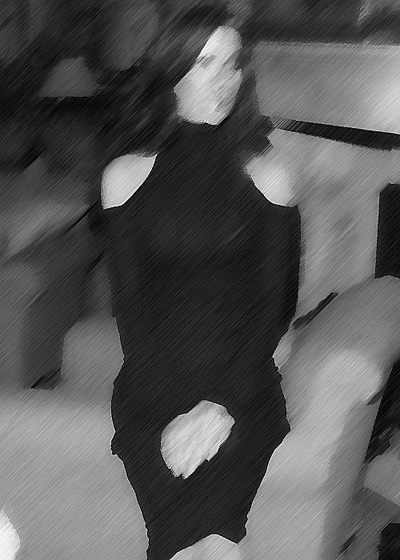
Step 8
Place this layer under the previously done work and set the top works to Multiply!