

Smoke? Smoke? Smoooooooke!
Step 1
This tutorial was requested from a frequent visitor of MickM.com, and he provided me with this cool stock:
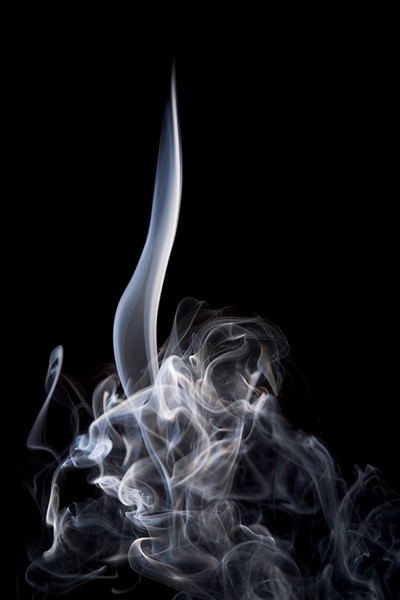
Click to enlarge
Step 2
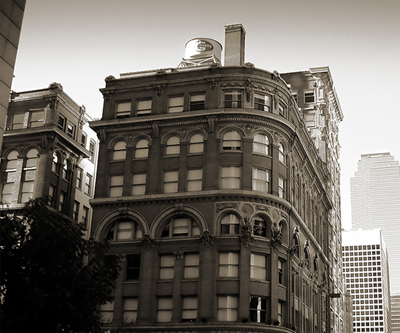
What we'll do is open up a random image we want to apply the effect on;
Step 3
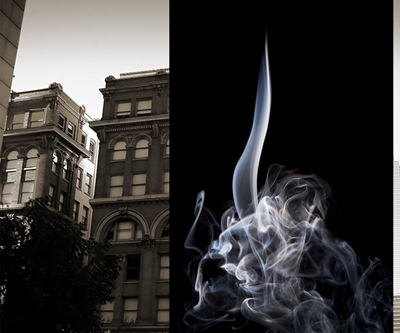
Then add the smoke;
Step 4
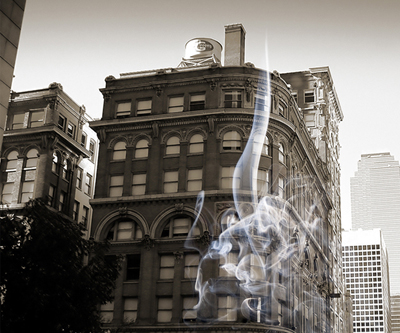
Set the blending mode to lighten;
Step 5
Position it good and then press Ctrl+Shift+U if you want grey smoke;
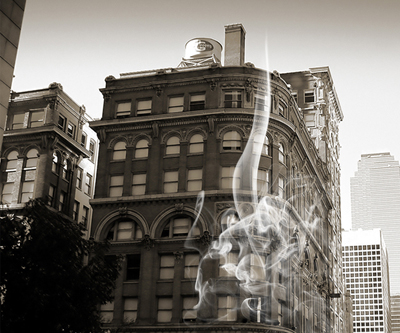
Step 6
Then use the Burn-Tool to draw burn-marks...
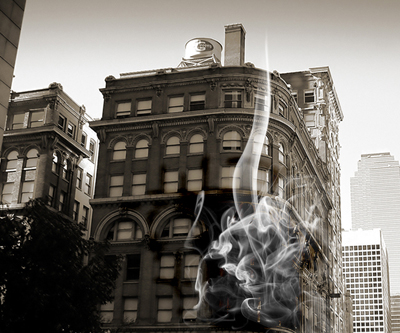
Click to enlarge
