

This tutorial requires Adobe ImageReady, so you should buy it, not illegally download it, if you don't have it already.
1. Make a new document in Adobe Photoshop, 88x31 or 88x11, with a white or transparent background. It doesn't matter at all for this tutorial.
2. Design your button. Make sure you keep the thing / things that you want to move on a separate layer.
3. Go to File > Jump To > ImageReady.
4. On the ImageReady screen, if there isn't an Animation window, (probably on the bottom,) then go to Window > Animation.
5. Duplicate the first frame by clicking on the first frame, then hitting the little
 button.
6. Now you will have two frames. Click on the second frame. Then click on the layer of the thing that you want to move.
7. Click the move
 tool, or hit V to select it.
8. Now move the layer around to where you want it to end up.
9. Hit the
 Tween button.
10. Use the following settings. You can change the number of frames, depending on how fast you want your stuff to move around.
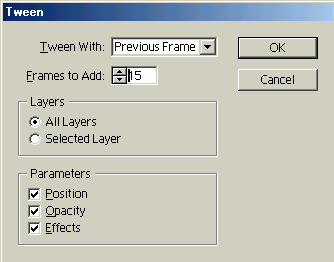
11. Now you can hit play on the Animation Window and see it go.
12. To save, go to File > Save Optimized As...
13. Save it as a gif because jpg's don't show the animation.
14. Here is my final result:

