Start off by opening the photo you would like to enhance and improve. You can do this by going to 'File > Open…' or press 'Ctrl' + 'N' as a keyboard shortcut and then browsing to the specific directory. Once you have opened the file, you should save the file under a new file name. The reason for doing this, is in case something goes wrong, you still have the original photo to work from. Save the photo under a new file name by going to 'File > Save As…' and then browsing to the preferred directory under which you would like to save it. *Or you could simply press 'Ctrl' + 'Shift' + 'S' as a keyboard shortcut.
You will notice keyboard shortcuts are used throughout this tutorial. They allow you to execute effects, options and other features, quickly, without having to browse through lists of menus. Try to memorize these keyboard shortcuts, for you will definitely save a great amount of time on the long run.
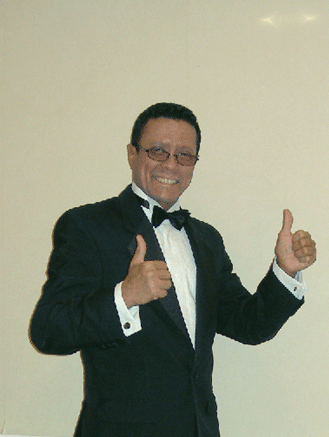
See Figure 1 below as an illustration to the 'Before' image I will be working on. The image is too dark, and the color balance is completely wrong. Throughout this tutorial, the necessary steps will be taken to fix this image, transforming it into a good quality photo as a result.
Firstly you will change the density. The density of a photo or an image is the amount of lighting which is provided to the photo or image. You can open the 'Levels' dialog by going to 'Image > Adjustments > Levels...'. *Or you could simply press 'Ctrl' + 'L' as a keyboard shortcut. Once you have done this, you should see a new window opening, with the title 'Levels'. See Figure 2 as an illustration to this description.
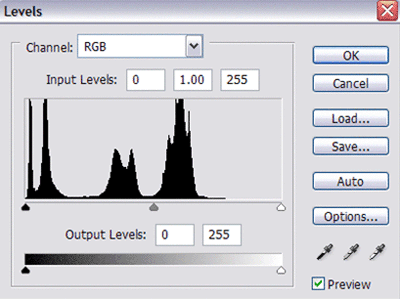
This dialog box has many different options regarding density levels, but for now you will only be using the three sliders below the top graph. Notice that there are three sliders (black, grey and white). Each one of them represents a different level.
The main thing you should do, and most probably the only thing, depending on the current lighting of the photo, is to move the white (right-hand) slider. You should now move the white slider to the left hand side, until the lining of the slider reaches the black part of the graph. When the white slider touches the first bit of black below the graph, then you can release and view your image.
In case your image still seems to be on the dark side, you can fine-tune the lighting by moving the grey (middle) slider slightly to the left. Don't move it too much, otherwise you will overexpose the photo or image. Move it just about 1centimeter / 0.5 inches.
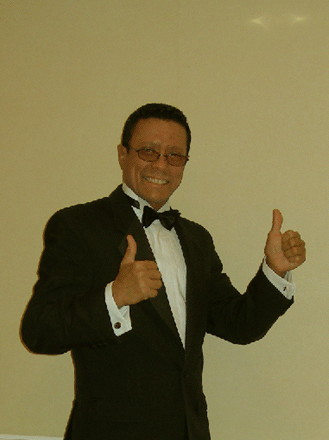
See Figure 3 below as an illustration to the drastic changes made to my photo by following these steps above.
The density levels of the photo is now perfect and there is only one more thing left to do, in order to create a good result and an appropriate retouch.
The next step towards fixing your photo is to toggle the color levels. Color levels work on RGB code, which consists of Red, Green and Blue. Each one of these colors has 255 different shades, and all together they are added to form a picture or one color individually.
As you look at the photo shown in Figure3, you should notice that it looks 'reddish' and very 'yellowish'. In other words, the color balance is out, and is tilted towards less Cyan, resulting in too much Red. It is also tilted towards less Blue, resulting in too much Yellow. You will see how colors work just now, as we will view the 'Color Balance' dialog. Open the 'Color Balance' dialog by going to 'Image > Adjustments > Color Balance...'. *Or by pressing 'Ctrl' + 'B' as a keyboard shortcut.
See Figure 4 as an illustration of the 'Color Balance' dialog which will open on your workspace.
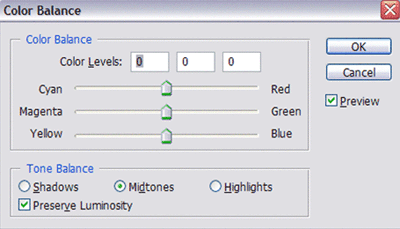
As seen in Figure 4 above, there are three sliders, and other features on the dialog. You will learn the definitions of these features as we move on, and practically use them. With RGB, as explained earlier, there are three main colors (Red, Green and Blue), each having 255 different shades. RGB color is also known as CMY color, consisting of Cyan, Magenta and Yellow. Cyan is the opposite of Red ; Magenta is the opposite of Green ; Yellow is the opposite of Blue. We will implement these colors into the image we are retouching.
I have mentioned earlier that the image seems a bit too red, and also a little bit too yellow. Obviously the color levels will be completely different on your photo which you have in front of you, but you can follow my steps to get the idea. To some extend, you will have to use your own intuition and feel.
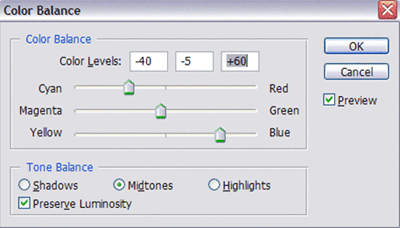
By default, all of the sliders in the 'Color Balance' dialog will be on 0. Thus you have to move them in order to achieve the desired color changes. You can view Figure 5 above for the specific color changes I have made to my photo.
The photo was too red, so I reduced the red by adding Cyan to a value of -40. The image was also too yellow, so I increased the amount of Blue to a value of +60. As you should notice, I have also reduced Green, thus increasing Magenta in order to give the skin more color. You can always add a small amount of Magenta to give color to pale-white skin.
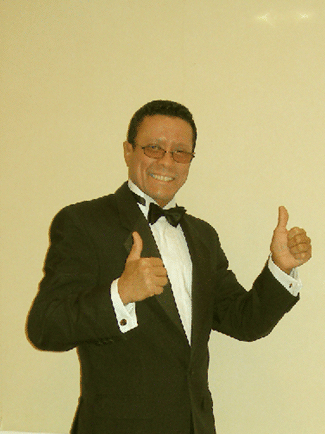
The photo retouch task is now complete, and you can view the resulting image in Figure 6 below.
In this tutorial you have learnt how to change density to control the amount of lighting on your photo, and you have also learnt how to make color corrections, using the 'Color Balance' dialog.
A shortcut to correcting the color levels of an image is by pressing 'Ctrl' + 'Shift' + 'B'. By doing this, you allow Photoshop to correct the color for you automatically, but it is highly recommended that you do this manually, since Photoshop is not always accurate in executing this correction.