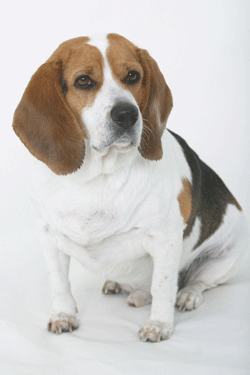
1. Open in Photoshop a picture of an isolated animal, a dog in this example.
2. Create a new layer, rename this layer as "eye1 base".
3. Select the Elliptical Marquee Tool and draw a circle in the left eye of the dog while holding SHIFT to get a perfect circle.
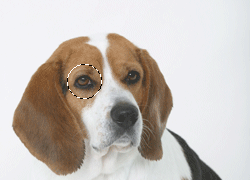
4. Fill the background with any color.
5. Right click the "eye1 base" layer and choose Blending Options, use these settings:
Bevel and Emboss:
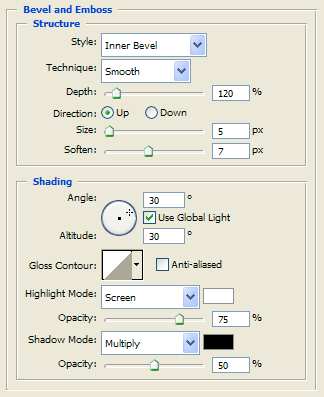
Color Overlay: #ffffff
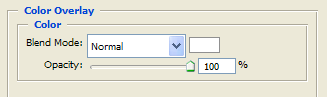
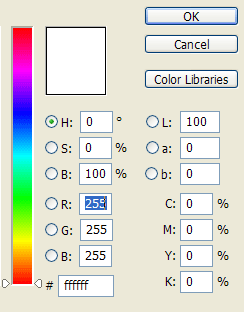
6. Create a new layer, rename this layer as "eye1 color".
7. Select the Elliptical Marquee Tool again and draw another circle over the last circle a little smaller while holding SHIFT.
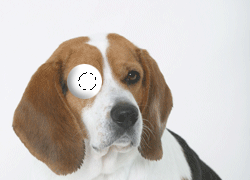
8. Fill the background with any color.
9. Right click the "eye1 base" layer and choose Copy Layer Style.
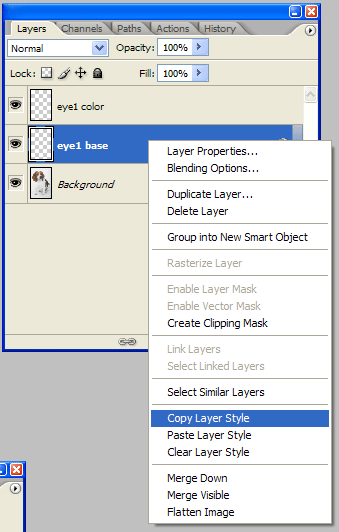
10. Right click the "eye1 color" layer and choose Paste Layer Style. We will use almost the same settings.
11. Right click the "eye1 color" layer and choose Blending Options to change the color to blue:
Color Overlay: #305fcc
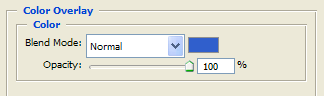
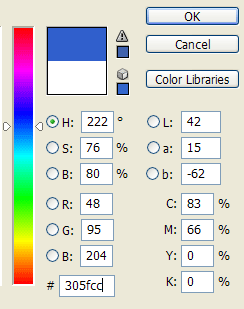
12. Create a new layer, rename this layer as "eye1 black circle".
13. As before select the Elliptical Marquee Tool and draw a circle over the last circle a little smaller.
14. Fill the background with black color #000000.
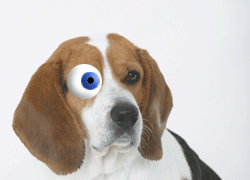
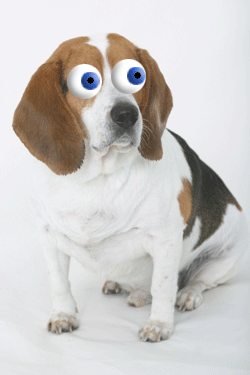
15. Move the layers to get a funny eye effect.
16. Duplicate the 3 layers to make the right eye in the same way and you are finished!
17. This is the final effect: