

Now in this tutorial I'm going to explain how to make this effect.
We are going to use lot's of sprites, so it might get a little complicated.
But i try to keep it as simple as i can.
1. The main ellipse.
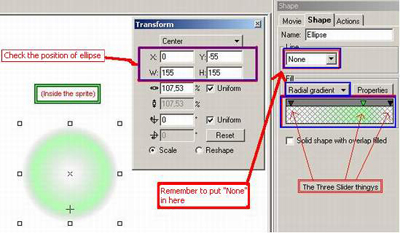
a) Create an Ellipse, (hold down Shift-key while sizing the ellipse. The size could be =155 H=155) and make it gradiental gradient.
b)Now the gradient colours. Make 3 Colour-slider to the gradient.
And the "sliders" on both sides are totally Transparent (0%) black.
And the one in the middle is 30% transparent Green. Make it a bit to the right.
c) Now, group the Ellipse as Sprite and name the sprite as "ellipse_1".
d) then move the ellipse inside the sprite so that the position of the ellipse is X= 0 and Y= -55
2. The Sprites.
Part 1
a) Group the "ellipse_1".
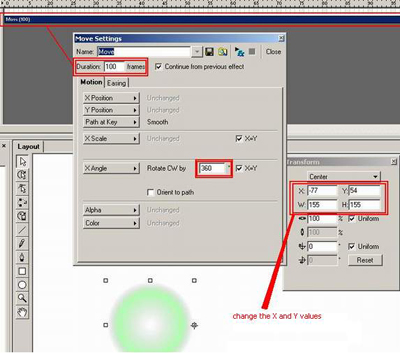
b) place the sprite "ellipse_1" so that the X= -77 and the Y = 54-
c) Add an 100 Frames long Move-effect in the Sprite you just created.
d) From the Move Settings, press the "X angle" and "Rotate CW by" and add the value 360 to the Text-field.
Part 2
a) again, group the sprite.
b) now make an 150 frames long Move effect.
c) from the move settings: press "X angle" and then "Rotate CCW by" 360°
3. Colors
a) Make Four 60 frames long Move effects.
b) In the first Move -> Move Settings -> press "Color" -> "Fade to color" -> Make the color 100% Red.
c) do the previous task, but this time set the colour 100% Blue
d) do the previous task, but this time set the colour 100% Orange
f) do the previous task, but this time set the colour 0% Black
g) Group this sprite Thing as one Sprite.
4. The place.
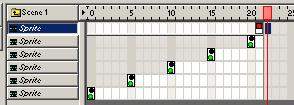
a) now that you have the sprite. Copy the sprite. Let's say 4 Times So you get 5 sprites
b) now as you copy, make them a little smaller than the previous one
c) then We add some "place" effects. This creates the "wormy" look to it. So, add the "place" so that it's every 5 frames. The image shows it more clearly. Then add a stop to the
d) now group all the sprites as one big sprite. then add "end" effect to the end.
5. Done
Download source file here.
