This lesson I'll tell you how to create a football's match banner. But first create a new file with 420x128 px and 72 dpi. Choose after that the instrument
 and paint it in the color 338B27.

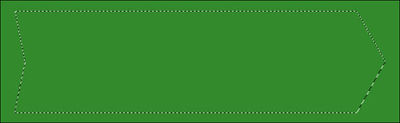
Then create a new layer and a marking having the pointer's shape with the indicated tool
 . Paint this marking in the color 2B7621 with the instrument
Choose next the instrument
 and represent a marking stripe, then it should be moved on our pointer. Create several lighting stripes with the instrument
 and the Opacity of 30%.

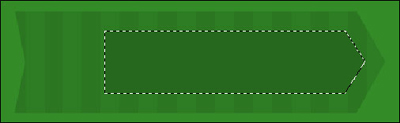
On the new layer must be represented a marking too, looking like a pointer. It's possible to do that with the instrument
. Paint this marking in 26681D with the shown tool
.
Open a new file now with 4x4 and 72 dpi. Create a new layer on it and erase the background after that. Choose this instrument
 to represent a diagonal stripe having the color code 2C6D23.

Go to Edit/Define pattern … and click Ok.
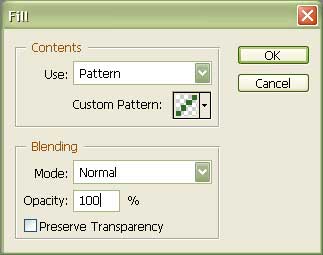
Get back to the file with the banner and choose Edit/Fill… Here you should choose the created stripe earlier.

Choose after that two pictures and start to process them.
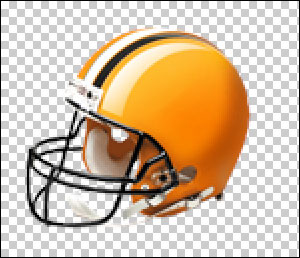
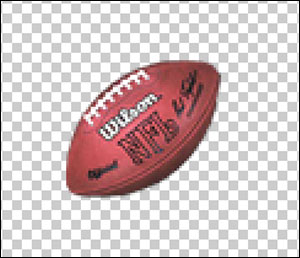
Place them on the banner.

Use the Blending Options adjustments for the helmet.
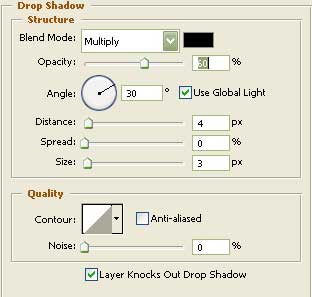
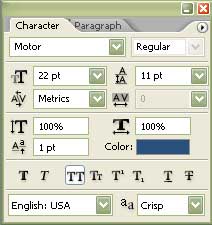
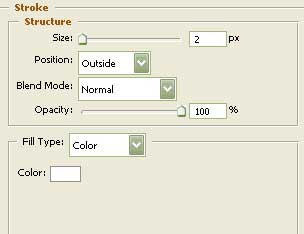
Choose the text now.

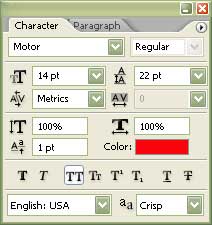
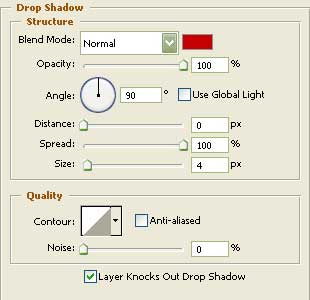
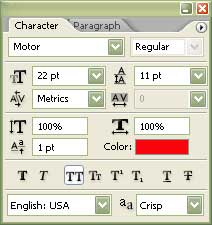
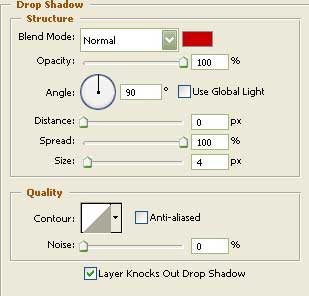
The text having the red color has the next adjustments. Its color's code is F8040A.
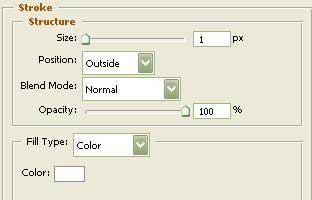
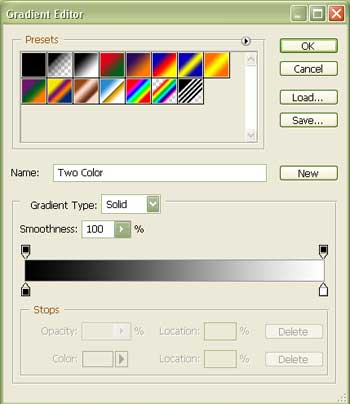
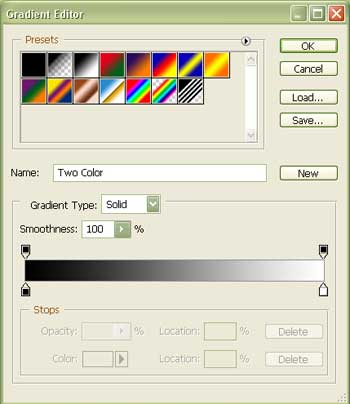
The text having the blue gradient has the color code 2A507E.
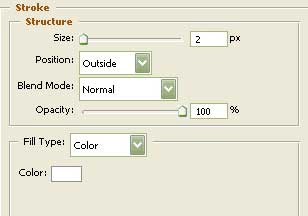
The last text that is situated in the middle of the inscription has the color F8040A.
That is how the finished version should look!