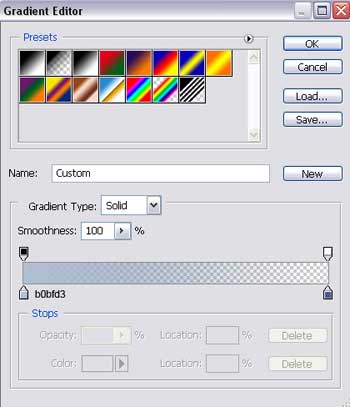
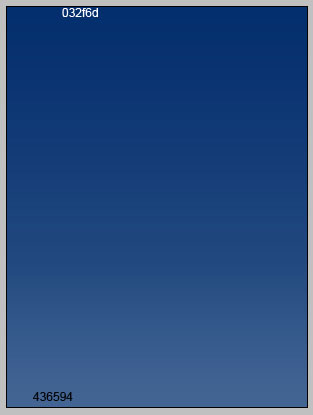
Create a new file with 600x800 px and 72 dpi. Apply the shown instrument
 to represent the background (the colors' codes are indicated)
Take the shown tool
 to picture a figure with the next sizes.
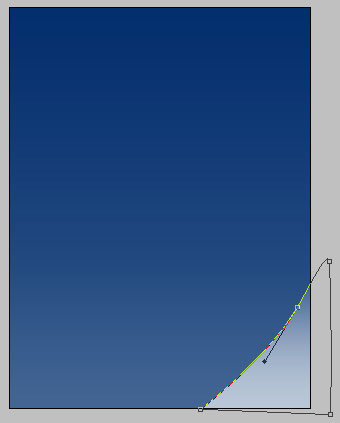
Fill 0% on the layers.
Blending Options-Gradient Overlay
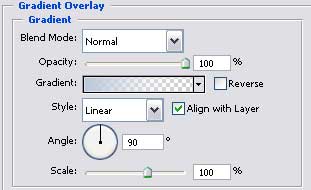
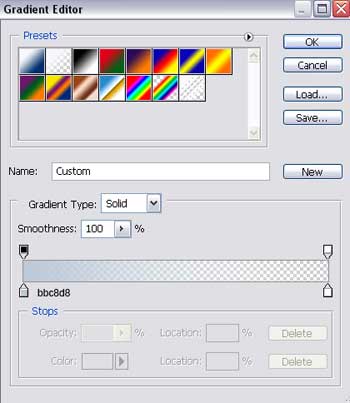
Gradient's parameters.
Take the same instrument to make one more figure with the demonstrated parameters next step.
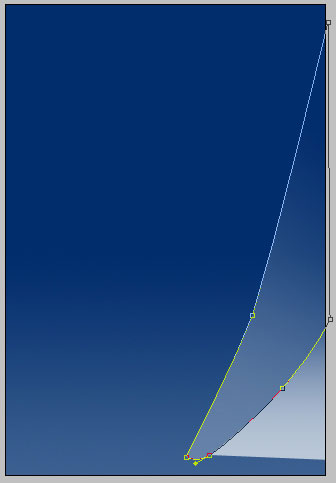
Fill 0% on the layers, the Opacity must be of 42%.
Blending Options-Gradient Overlay
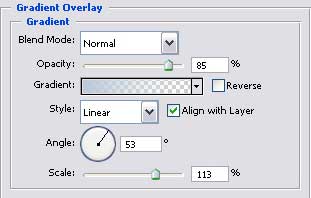
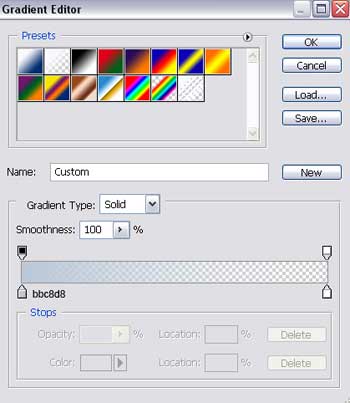
Gradient's parameters.
Choose another instrument now
 to represent a figure like the next one, with the same sizes.

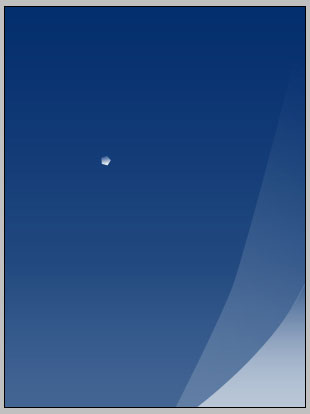
Blending Options-Gradient Overlay
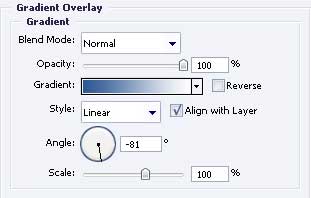
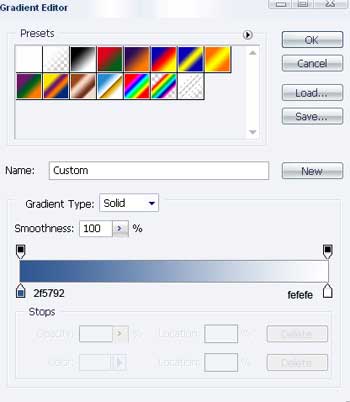
Gradient's parameters.
Introduce the same way several more pentagons, like next picture shows it.
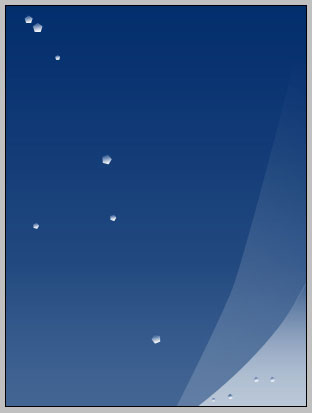
The Gradient Overlay parameters are the same in all cases.
Choose now the corresponding cliché from the next table, by using next tool
 .
.
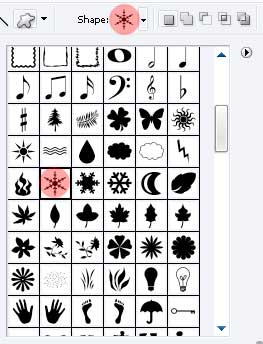
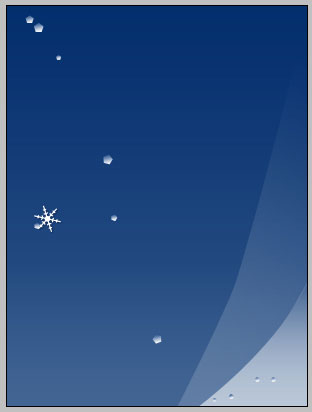
A snowflake of white color.
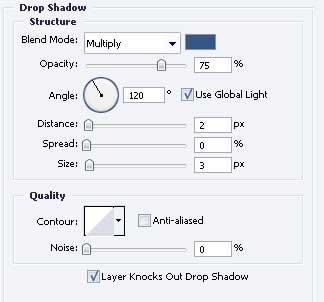
Blending Options-Drop Shadow
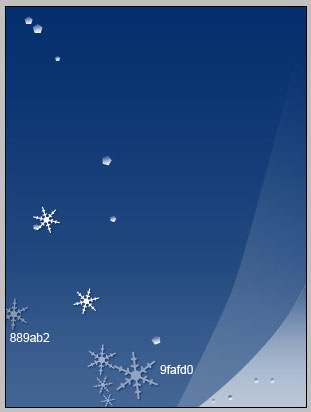
The same instrument will be helpful in representing several more snowflakes with the colors' codes indicated below (the last one from the left corner, the group of four snowflakes from the bottom), the rest of them are pictured in white.
Take the next instrument
to create a figure with the shown parameters.
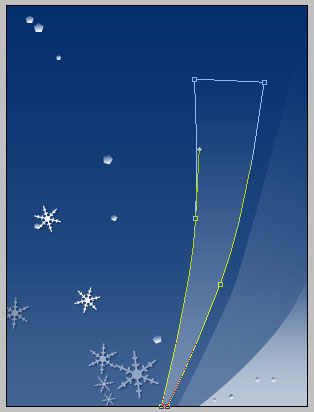
Fill 0% on the layers, the Opacity must be of 72%.
Blending Options-Gradient Overlay
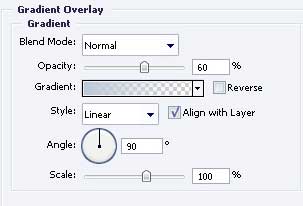
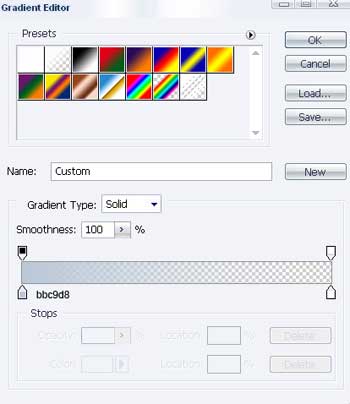
Gradient's parameters.
Choose now next tool
 to draw a circle painted in white again, like in the next step.

And one more with the previous instrument.

Get the same instrument again
to picture another element with the sizes from next picture.
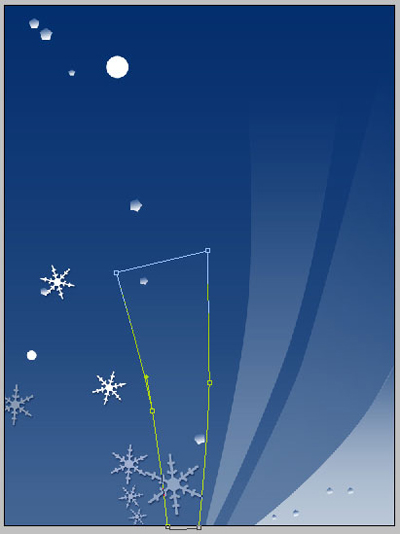
Fill 0% on the layers and place them correctly.
Blending Options-Gradient Overlay
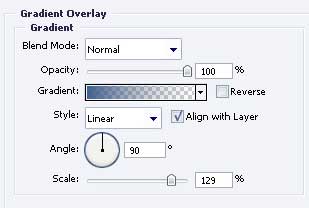
Gradient's parameters.
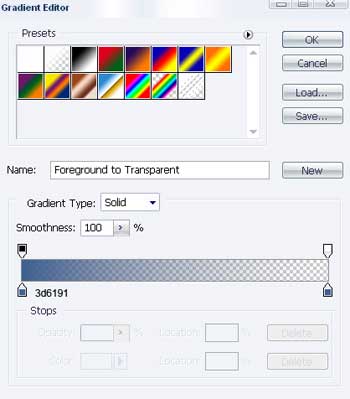
One more figure must be represented by the same instrument. Don't forget about the parameters.
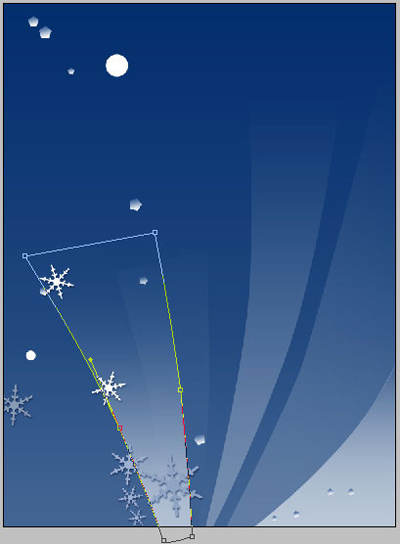
Fill 0 % on the layers and place correctly the layers also.
Blending Options-Gradient Overlay
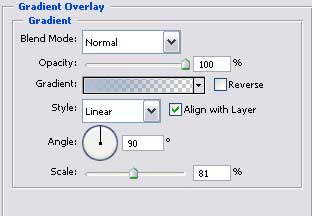
Gradient's parameters.