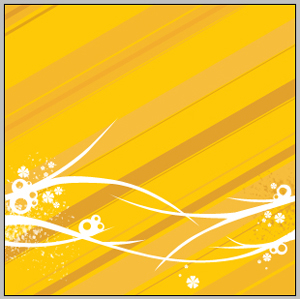
In this tutorial you will learn how to create Yellow background Illustration.
Let's create a new document with dimensions 300x300 and 72dpi. Paint it with the color, which code is indicated with red.
Using the instrument
 , make a circle (the code is also indicated):
Continue making circles of the same color:
Make more circles of white color, but their backgrounds you should place under the dark circles' backgrounds. Move the dark circles the way that they couldn't be centered. That is what we should get.
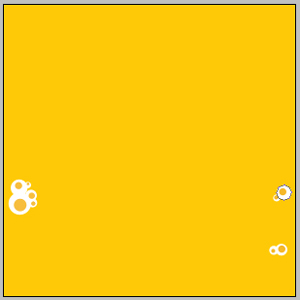
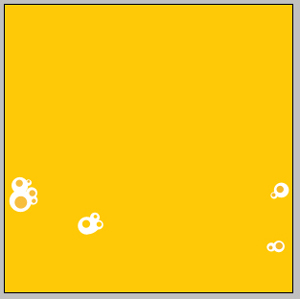
and more:
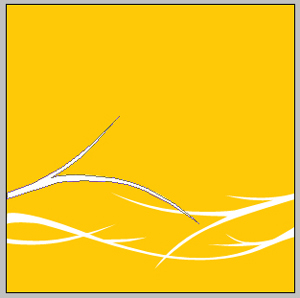
Using the instrument
 on a new background make some designs of white color:
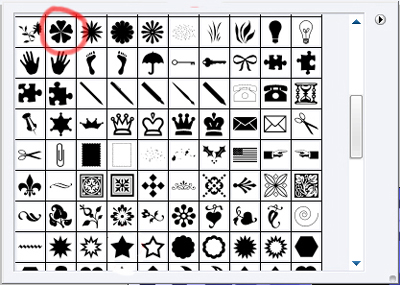
Then using the instrument
 , make white color flowers like this: - some of the white color flowers are marked out.
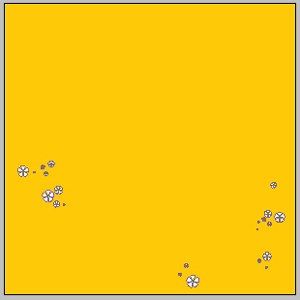
- no marks.
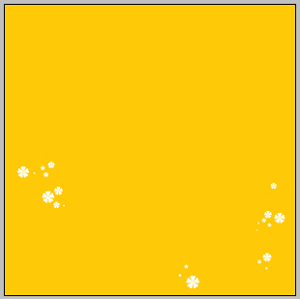
On a new background using the instrument
, make a rectangle (the color code is indicated):
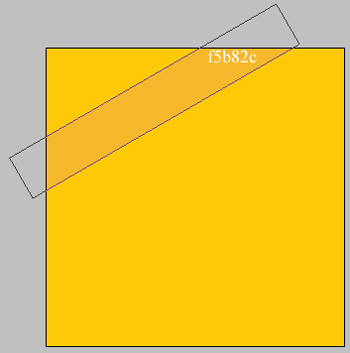
and some other rectangles of different colors (colors' codes are indicated):
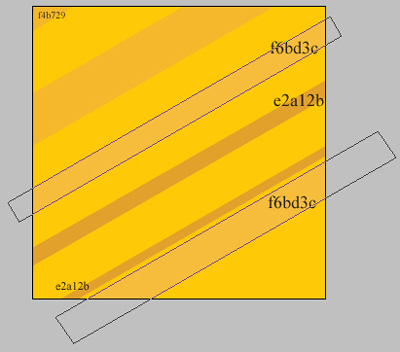
continuing, create some others of different dimensions:
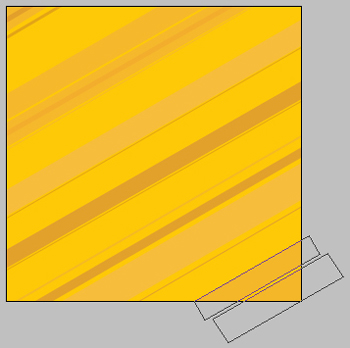
Combine them:
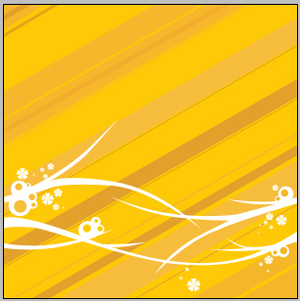
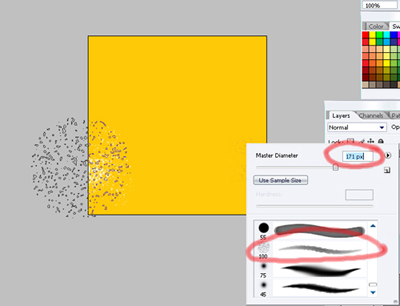
Don't forget to place the backgrounds correctly. The last feature – brush effect. Choose the brush with the right mouse's button like in the picture:
And create a picture like this:
Put everything together: