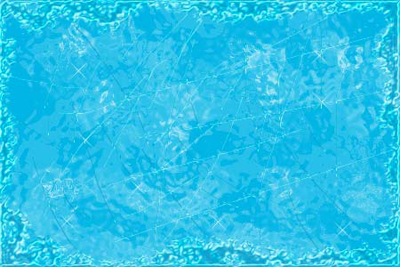
Step 1.
Create a new 450X300 px document with a light blue color background (I chose #00b5e5). Create a new layer, choose "Drippy Watercolor" brush (you can find this brush here: Preset Manager > Load > Special Effect Brushes) with the following settings: Master Diameter - 18 px, Hardness - 0%. Then set the opacity 25% for this layer.
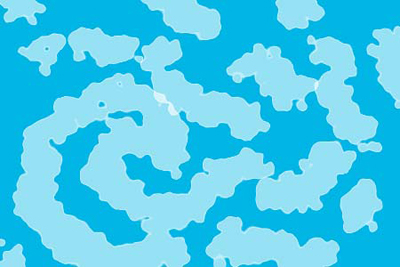
Step 2.
Create a new layer. Choose "Scattered Flowers Mums" brush (you can find this brush here: Preset Manager > Load > Special Effect Brushes) with the following settings: Master Diameter - 45 px, Hardness - 0%. Then set the opacity 65% for this layer.
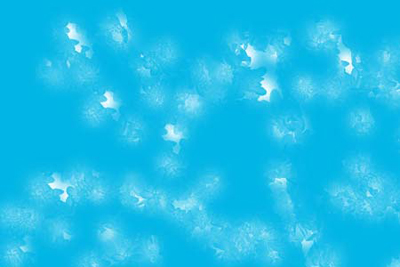
Step 3.
Then merge down 2 layers. Create a new layer. Using different brushes draw a scratched ice surface (I used "Heavy Stipple" and "Drop Shadow Round" brushes).
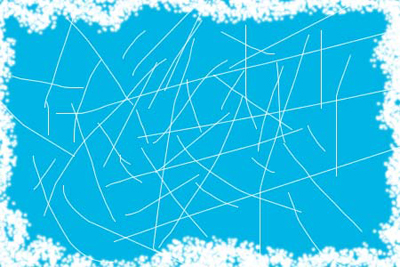
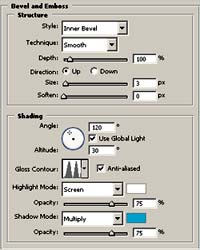
Apply Layer > Layer Style > Bevel and Emboss with the following settings:
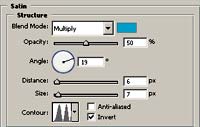
Apply Layer > Layer Style > Satin with the following settings:
Step 4.
Go to the first layer. Apply Filter > Distort > Glass with the following settings: Distortion - 9, Smoothness - 5, Texture - Frosted, Scaling - 200%.
Then go to second layer and set the blending mode as Overlay. And that's it.