Note: This tutorial is done by Adobe Photoshop 7.0
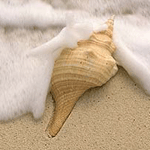
1. Open any image. Make new layer by clicking Create a new layer icon (
 ).
).
2. Set foreground color to red and background color to white.

3. Select Gradient Tool (
 ) and apply to the layer you have just created. Hold Shift and apply from right to left.

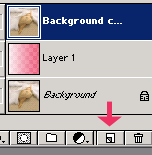
4. Make a copy of the background image by dragging it to new layer icon (
). Position it on top as shown to the left.
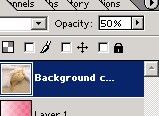
5. And finally set the Opacity of the layer to 50%. (You can do this effect by setting the blending mode to Overlay too, see which one suits you)
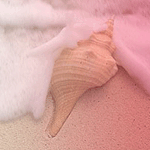
6. And finally here is your easy smoothly applied Gradient effect.