Step 1.
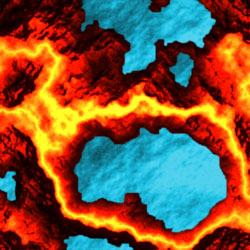
First we have to create a lava. Create a new 350X350 pixel document ("Main document") with the black background and the white foreground. Apply Filter > Render > Clouds and then Filter > Render > Difference clouds.
Step 2.
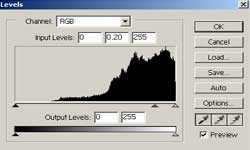
Apply Image > Adjust > Invert to invert the image. Apply Image > Adjust > levels... and use the following settings:
Step 3.
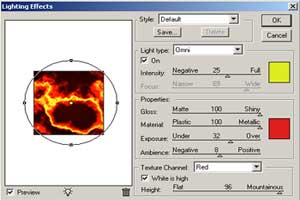
Apply Image > Adjust > Brightness/Contrast with the following settings: Brightness => -38; Contrast => +11; and then apply Image > Adjust > Hue/saturation with the following settings: Colorize=ON; Hue => 5, Saturation => 100, Lightness => +11. Apply Filter > Render > Lightning Effects and use the following settings:
Step 4.
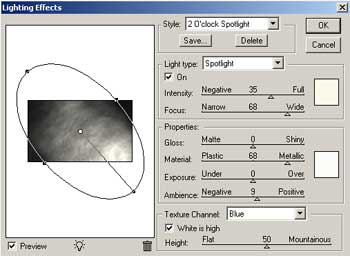
And now we have to create a water surface. Create a new 300X300 pixel document ("Water document") with the black background and the white foreground. Apply Filter > Render > Difference Clouds. Apply Filter > Render > Lighting Effects and use the following settings:
Step 5.
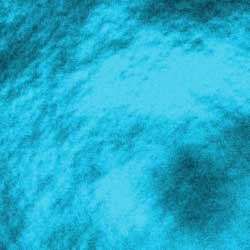
Apply Filters > Noise > Add Noise with the following settings: Amount->6%, Distribution->Gaussian, Monochromatic; and then apply Filter > Blur > Gaussian Blur (Radius->0,3 pixels) and Image > Adjustments > Hue/Saturation with the following settings: Colorize-ON, Hue->189; Saturation->80, Lightness->-37. And you will get a water surface like this one:
Step 6.
Now go to "Main document", choose the Lasso Tool and make a selection where you want to place a water surface. Then drag this selection to the "Water document", choose the Move Tool and then drag a part of water surface to the "Main document" on the necessary place. After creating several layers with water surfaces combine them into one layer (press Ctrl+E). Now apply Filter > Blur > Blur two times. And that's it.