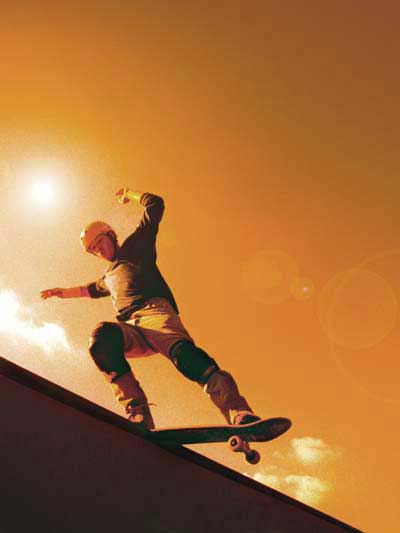
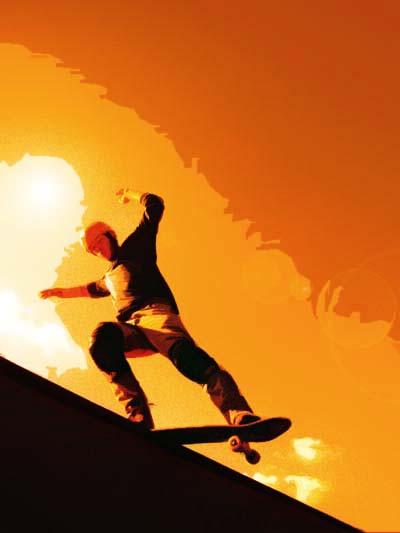
1. Open your favorite image:
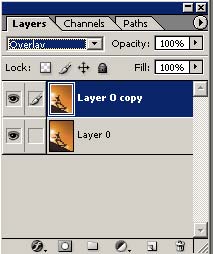
2. Ctrl+J to duplicate the layer, set Mode Overlay for duplicated layer:
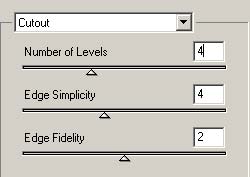
3. Go to Filter>Artistic>Cutout:
Results:
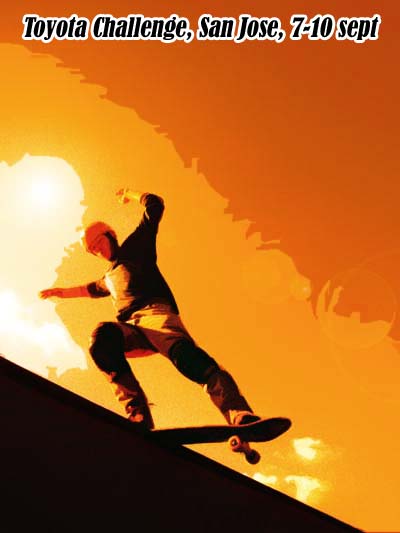
4. Add title text for flyer, I use font Bernard MT Condensed:
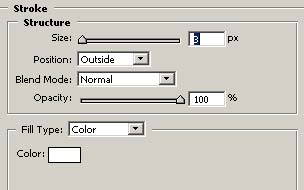
Blending Options and add Stroke:
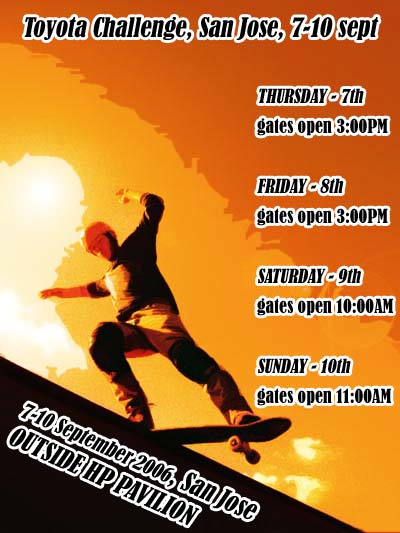
add other important text for this flyer - location and event schedule:
5. Now add nice stars on background, Select the brush tool (B), then click in the brushes window. If you can’t see the panel go window > Options to show it:
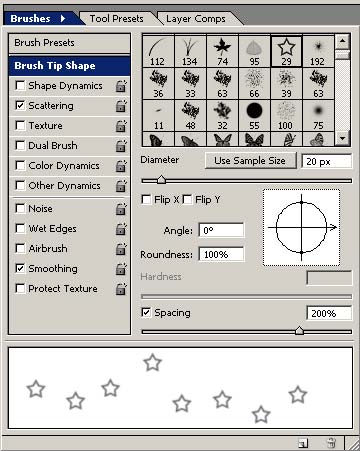
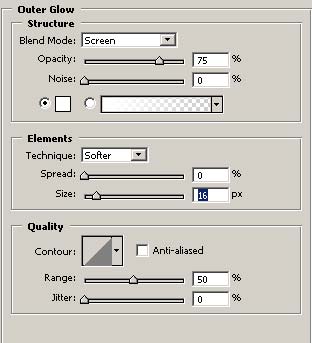
Now, create another layer, hold down the left button of your mouse and tracing 2-3 lines made of stars. Go to Blending Mode>Outer Glow:
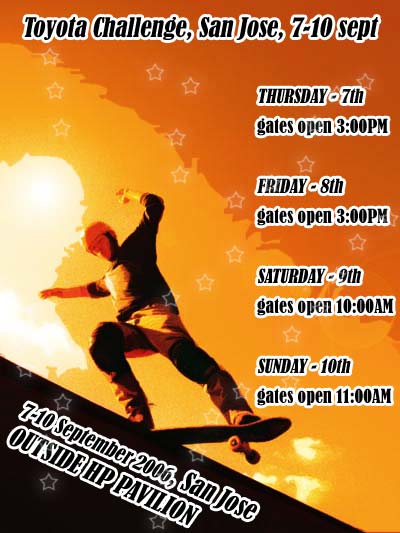
Now flyer it's ready: