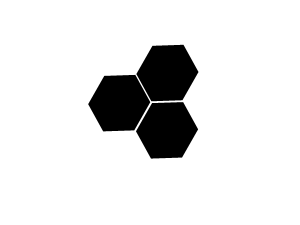
1. Begin with a new file, 300x225 and with a white background. Then create a new layer in the layers palette. Now take the Polygonal Lasso Tool and create a shape similar to the one below, fill the shape with any color.

2. Then duplicate layer 1 two times, to do that just right click on layer 1 and choose Duplicate Layer. Then use the Move Tool to move the shapes in position.
3. Now go back to layer 1 and right click on it, choose Blending Options and apply these settings.
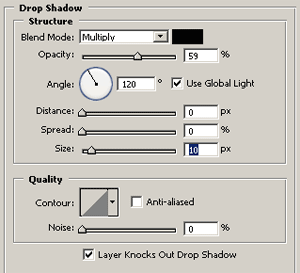
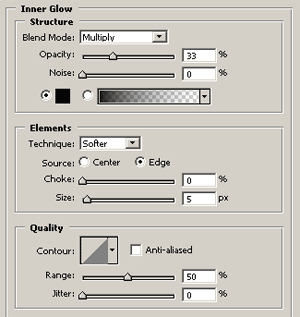
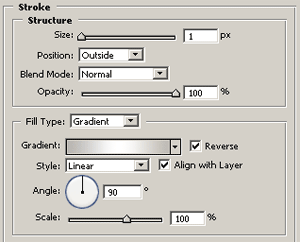
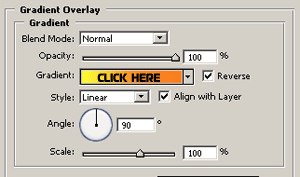
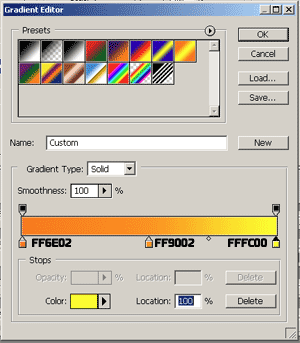
And now should you have something like this.

4. Now right click on layer 1, choose Copy Layer Style, and then right click on layer 1 copy, choose Paste Layer Style. Now the thing you need to do is to once again right click on layer 1 copy, and choose Blending Options and change the Gradient Overlay to this.
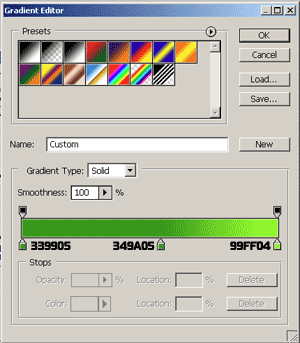
Now should you have something like this.

5. Then repeat the above step on layer 1 copy 2, but this time use this Gradient Overlay.
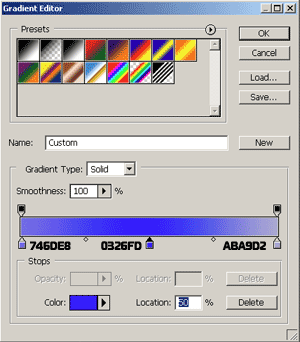
And now should you have something like this.

Then add some text to it, and you're done! This is what I came up with.