Step 1.
Create a new document of any size in photoshop, I will be working with a 500x500 document for this tutorial.
Step 2.
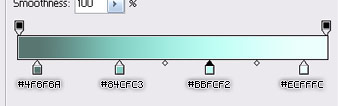
Select the Gradient Fill Tool (
 ) and apply the following settings:
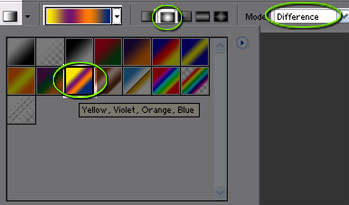
Drag the cursor from the top left corner, toward the bottom right corner as I have done here.
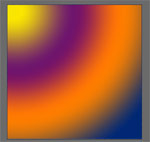
Repeat this process 11 times, adjusting your angle, and starting point slightly.
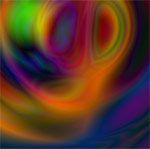
Here's roughly what your canvas should look like after doing this:
Step 3.
Go to Filter->Sketch->Chrome and use the following settings:
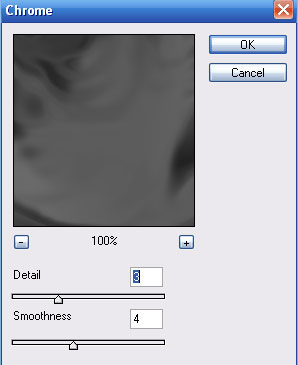
Result:
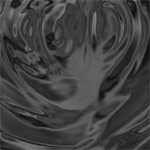
Step 4.
Go to Filter->Stylize->Glowing Edges, and apply the following settings:
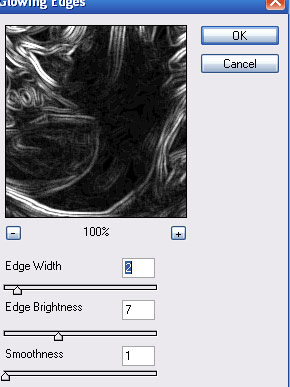
Result:
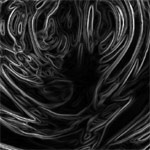
Step 5.
Press Ctrl + J on your keyboard to duplicate this layer.
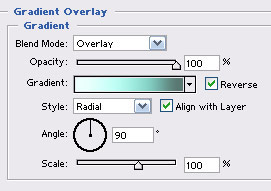
Double click this layer, and apply the following blending options:
Gradient Overlay:
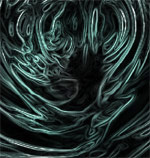
Result:
Step 6.
Press Ctrl + J on your keyboard to duplicate this layer.
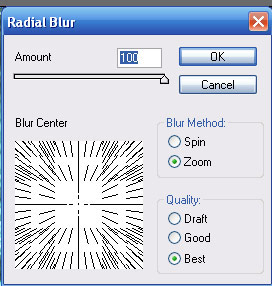
Go to Filter->Blur->Radial Blur, and apply the following settings:
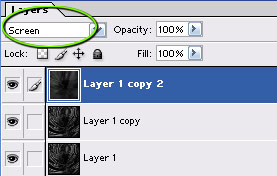
Change the blending mode of this layer to "Screen":
Result:
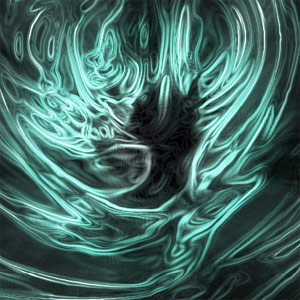
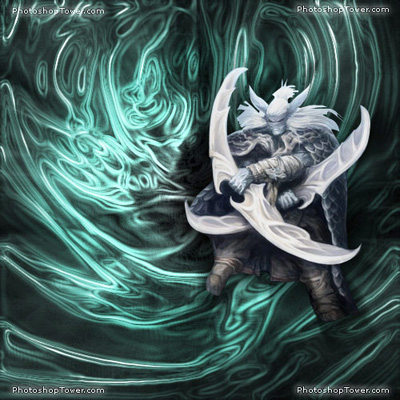
That covers the creation of the background. Here for my final result I've added a game render and as you can see, the render looks great when placed on this background. This type of background works great for web page header's, or even your forum signature. Just experiment and have fun.