

Step 1.
Start off by creating a new document that is 200 x 200, and fill the background with #6598CB.
Step 2.
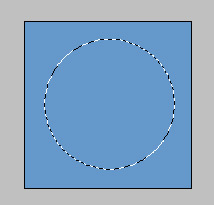
Create a new layer and name it 'button'. Get out the elliptical marquee tool, now hold down the Shift key on your keyboard (this will draw a perfect circle) and draw a circle in the middle of the canvas:
Step 3.
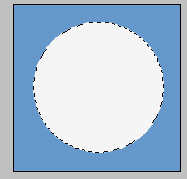
Fill the selection with #F5F5F5.
Step 4.
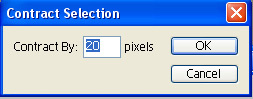
Go to Select->Modify->Contract with a setting of: 20
Here's what you should have on your screen:
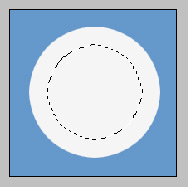
Now fill this selection with #6598CB, and press Ctrl + D on your keyboard to de-select.

Step 5.
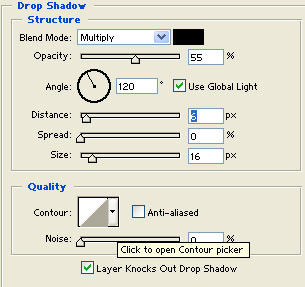
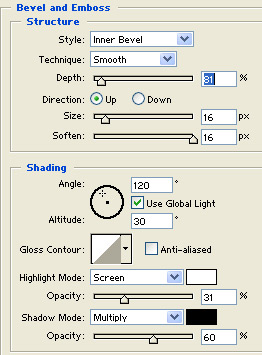
Next double click this layer, and apply the following blending options:
Drop Shadow
Bevel and Emboss
Step 6.
The only thing left to do is add text to your button. Use -, x or >> for example. Once you have it set up like you want, scale the buttons down to around 25x25...

Here's an example I made using this technique.

Hope you enjoyed this tutorial!
